
Resolve an open item and say what happened
For everyone · 1 min read
Resolve an open item with a note on what happened, so the reviewer and the workpaper both know how it was settled.
- 1Open the review’s Open items tab, or click the item’s row on the Open items page to get there.
- 2Click Resolve… on the item’s row.
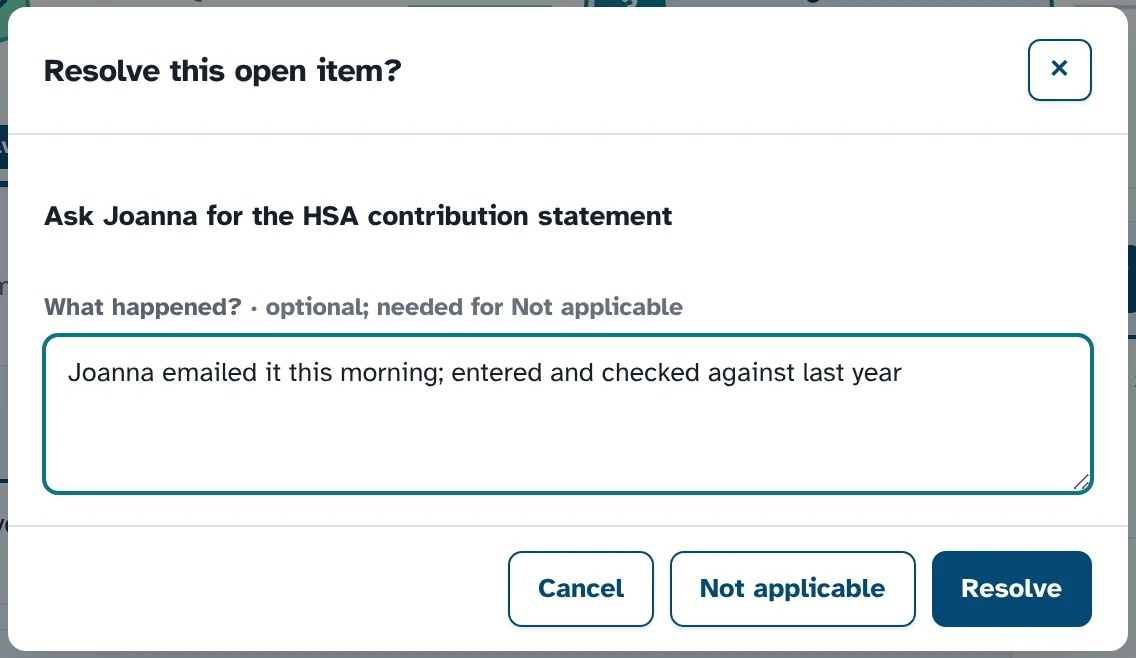
- 3Under What happened?, say how it was settled.
- 4Click Resolve. The item moves to Resolved on the right, with your note and your name.
 34
Good to know
- Doesn’t apply after all? Click Not applicable instead. It needs a note saying why, like “Client no longer has this K-1.”
- The note prints in the workpaper’s Appendix A · Resolved items, with who resolved it and when.
- Items from the answers have no Resolve… button: answer the question, write the research note, or click Mark received on a document.
- Resolved one too soon? Click Reopen beside it under Resolved.
- Anyone in the firm can resolve an item. The preparer, reviewer and the item’s owner are told, and it goes in the audit trail.
- Checkboxes on the rows are for doing several at once: see Resolve or reassign several at once.