
Resolve or reassign several at once
For everyone · 1 min read
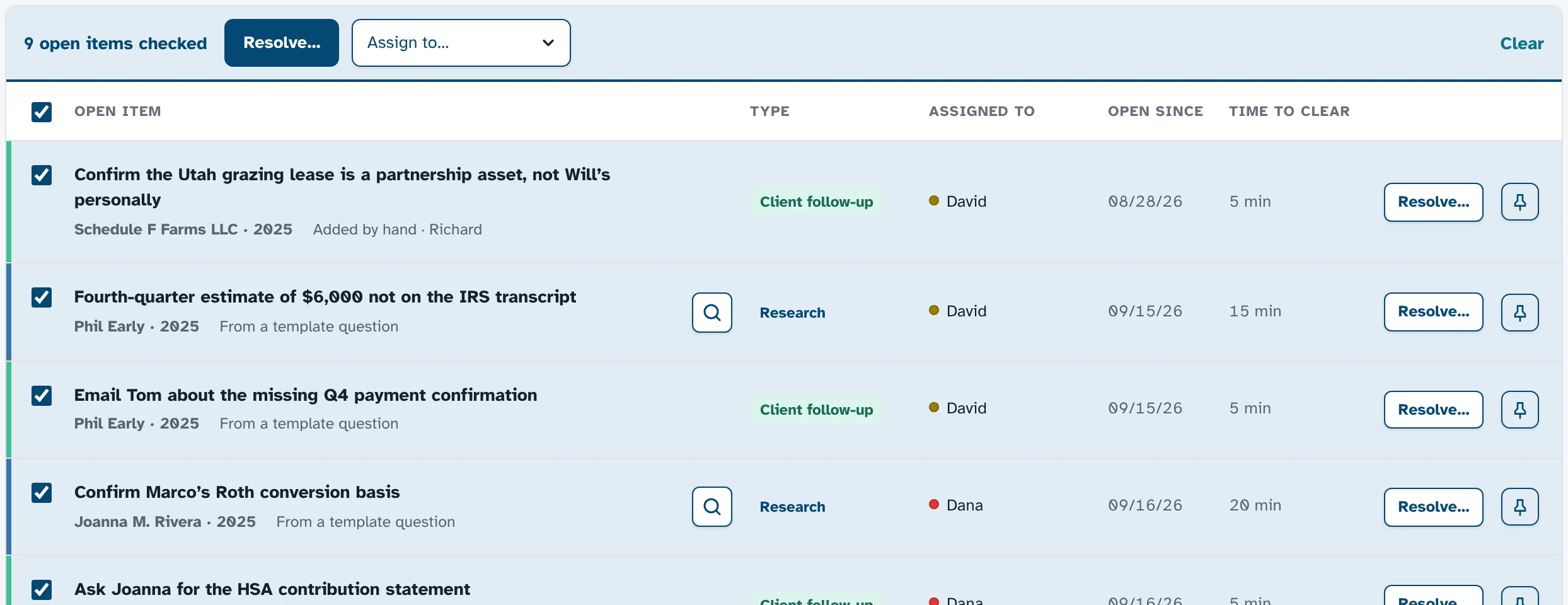
Check several open items, then resolve them with one note or hand them all to someone else in one go.
- 1Open the Open items tab and choose Mine, Unassigned or Everyone.
- 2Check the box on each item you want. The box in the heading row checks every item showing.
- 3To close them, click Resolve…, write one What happened? note for all of them, and click Resolve with the count, like Resolve 3.
- 4To hand them over, choose a person from Assign to…. Pick No one (Unassigned) to put them back in the pool.
 234
Good to know
- The same checkboxes and bar are on a review’s Open items tab, for that review’s items.
- Each item is resolved or assigned on its own, with its own line in the audit trail, so the record reads the same as doing them one at a time.
- Not applicable needs a note, and that one note goes on every item you checked.
- The new owner of an item gets a notification, unless you assigned it to yourself.
- Items from the answers have no checkbox: they close when the question is answered.
- Clear unchecks everything. Open items opens on Everyone for owners, admins and tax managers and on Mine for everyone else; once you pick a tab, this computer remembers it.