
Sign off a review
For owners, admins, tax managers, reviewers and preparers · 2 min read
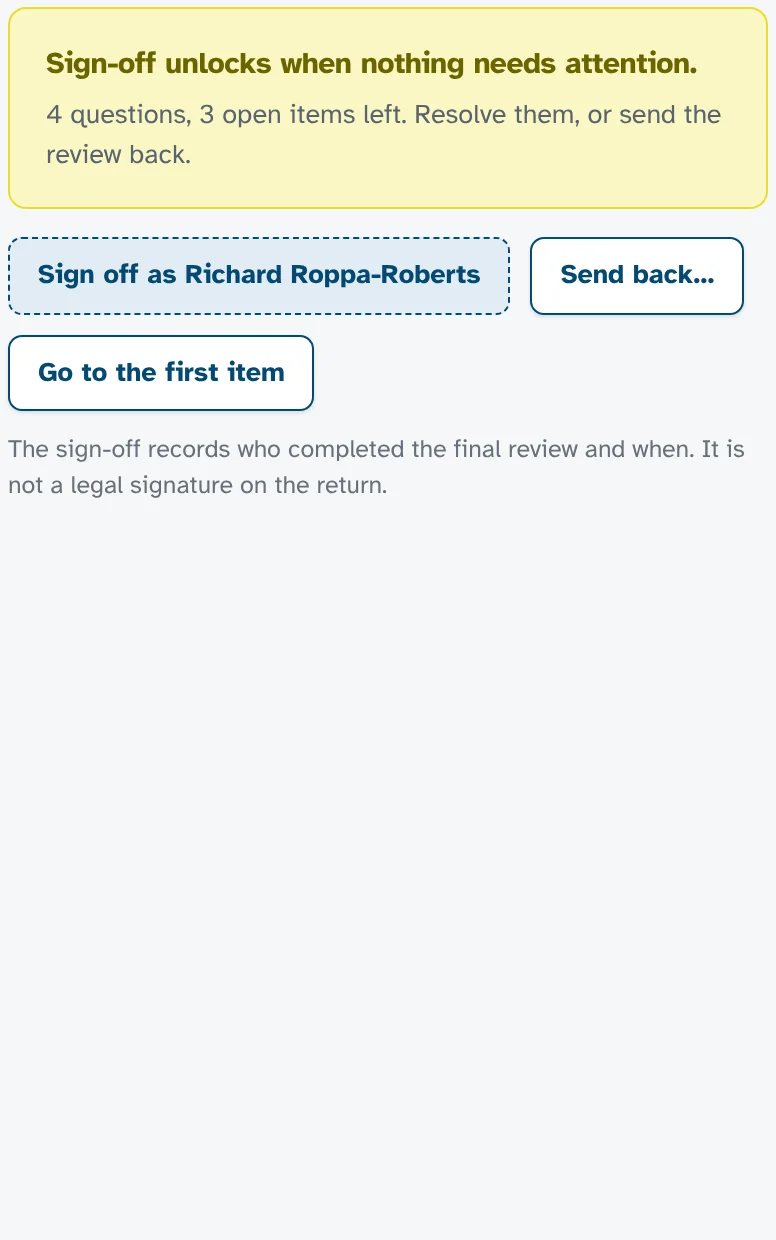
Sign off a review once nothing needs attention; it locks the review and saves the workpaper exactly as it stands.
- 1Open the review while it’s Reviewing and click Sign off (or the Sign-off tab).
- 2Clear what’s listed: Resolve… the open items, answer the questions, or click N/A on a question that doesn’t apply. The panel says Ready to sign off. when nothing is left.
- 3Click Sign off. A window asks first, naming you as the signer.
- 4Click Sign off in that window. The review locks with a padlock and the workpaper opens.
Good to know
- Sign-off is blocked while any question is unanswered or any open item, document or research note is still open. Not ready? Click Send back… instead.
- Who can sign off depends on the role and the form, set in Team; one person can get more as a Plus. By default owners, admins, tax managers and reviewers sign anything, and preparers sign 1040s.
- No button? The panel says which roles can sign that form.
- One person can prepare and review a return; the workpaper says so.
- The preparer and reviewer get a notification. It isn’t a legal signature on the return: it records who finished the final review and when.
- Changing anything afterward means reopening it with a reason and signing off again.
 32