
Read my Home page
For everyone · 1 min read
What each part of Home tells you, and what to click first.
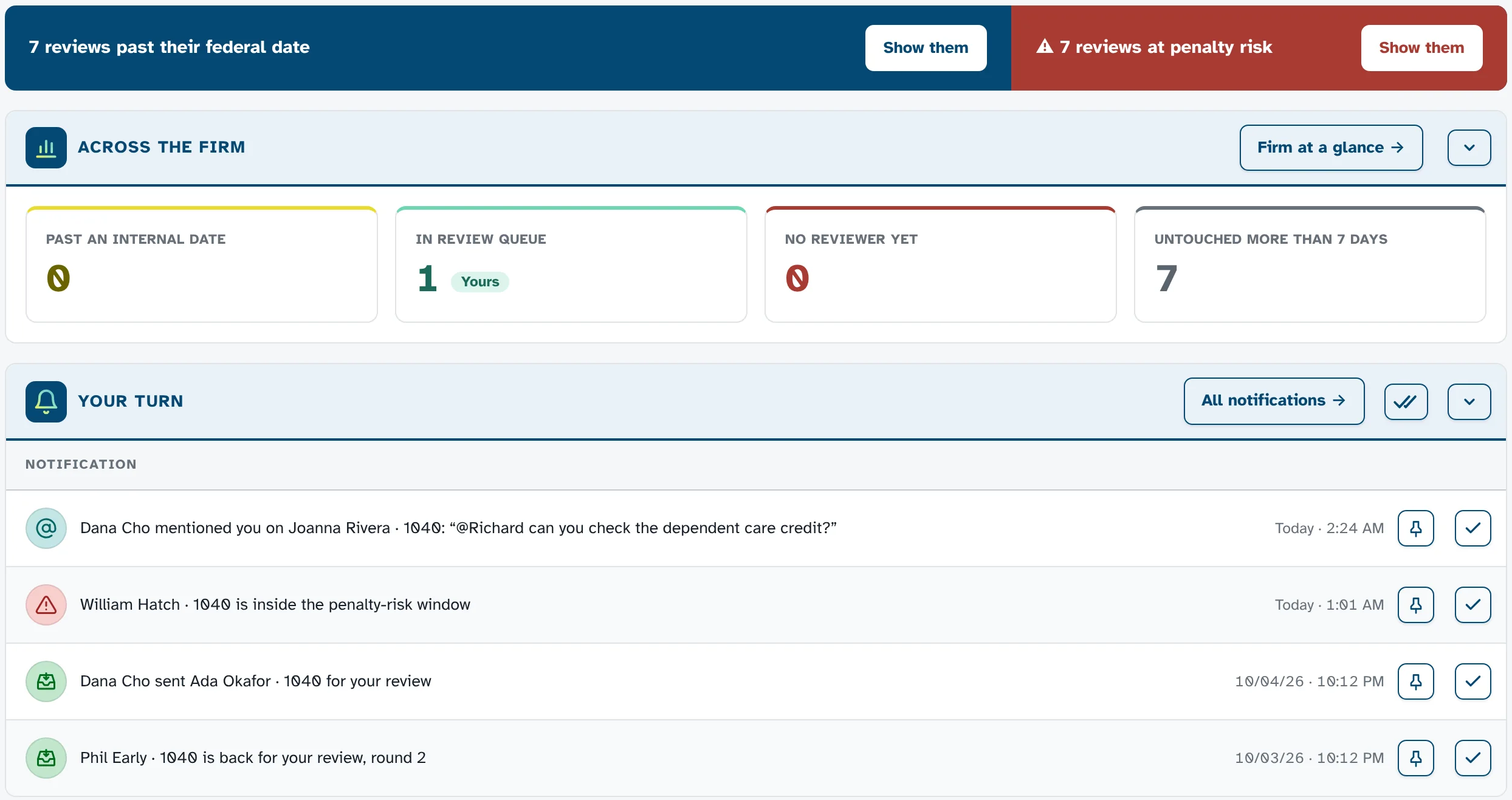
- 1Read the navy bar at the top: days left to the next date your returns are due (the federal date, or the extended date once an extension is filed) and how many are due then, or how many are past it. The right end is red with Show them while any review is at penalty risk, and a lighter navy when none is.
- 2Click a card to open its list. Owners, admins and tax managers see Across the firm: Past an internal date, In review queue, No reviewer yet, Untouched. Everyone else sees Your week, like Sent back to you or In your queue.
- 3Check Your turn: up to five notifications that need you. Click one to open it, or its check to clear it.
- 4Open a review from the lists below, such as Yours to prepare, Yours to review or Reviews not signed off. Each shows five, plus anything you’ve pinned; All reviews → opens the full list.
- 5Click the arrow at the end of any panel’s header to fold it away.
 1235
Good to know
- Owners, admins and tax managers have Just me | Everyone at the top right: Just me shows your own work, Everyone the whole firm. The one in bold is what you’re seeing, and this computer remembers it.
- Panels show what you hold: prepare something and you get Yours to prepare; review something and you get Yours to review. Empty panels hide.
- Needs a reviewer (owners, admins and tax managers) lets you pick a reviewer right in the row.
- Firm at a glance → or My work at a glance → in the first panel’s header opens the season’s numbers.
- The link beside the date is your Getting started checklist. Until it’s done, the checklist shows under the date too; Dismiss takes it off Home.