
Start a review
For owners, admins, tax managers, tax admins, reviewers and preparers · 2 min read
Start a review in four steps: the client, the template, the tax year and dates, then who prepares and who reviews.
- 1Click + New at the right of the tabs, then Review.
- 2Pick the client, then click Continue to template. New client? Click ⊕ Add a client at the top of the list.
- 3Pick the template. The ones that match how the client files come first. Click Continue to tax year.
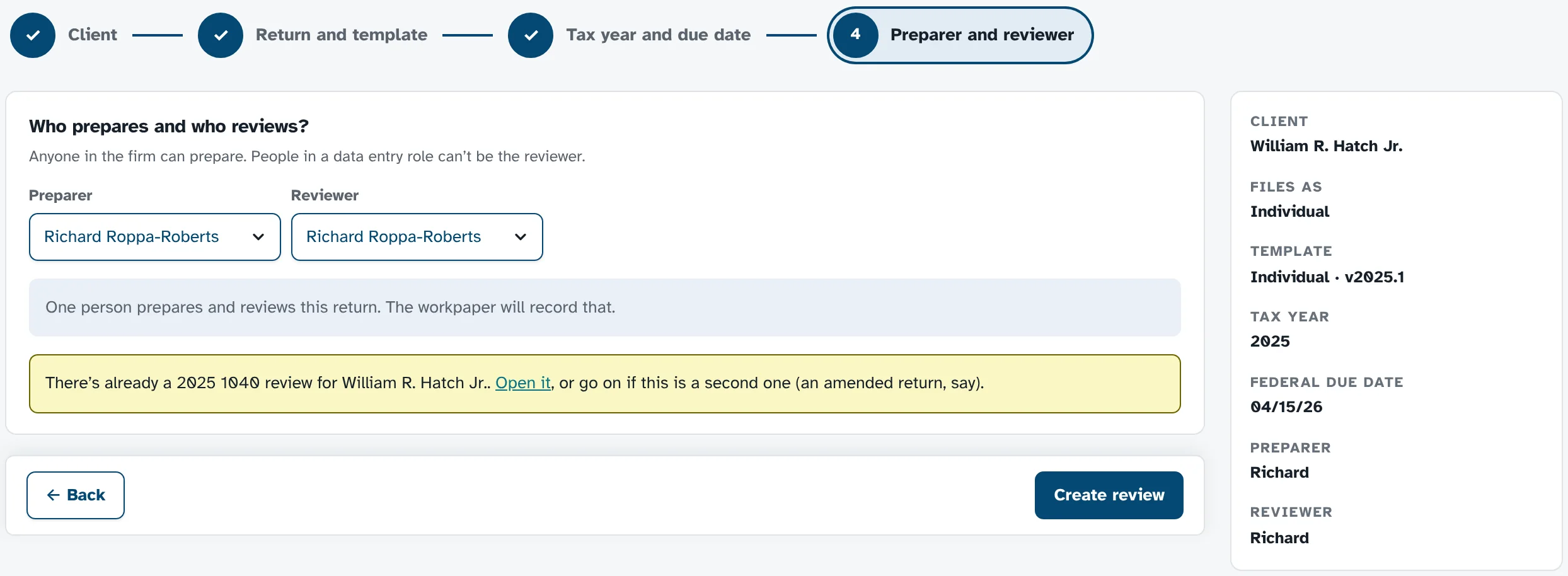
- 4Check the Tax year and Federal due date, then click Continue to people and choose the Preparer and Reviewer.
- 5Click Create review. The review opens in Preparing.
 45
Good to know
- Start by, To review by and Sign off by are worked out from the federal date and your firm’s Deadlines and time settings. They show on step 3 before you create the review.
- No Reviewer box? Your role can’t assign reviewers. The review waits in the review queue once it’s submitted, and someone who can assign picks one.
- If your firm starts the clock from documents in or the engagement letter, step 3 has an optional date box for it.
- People with the Data entry or Tax admin role can’t prepare or review a return.
- One person preparing and reviewing is allowed, and the workpaper records it.
- Starting a second review of the same client, year and form shows a warning with a link to the first. Go on if it’s an amended return.