
Pin a review, client or conversation
For everyone · 1 min read
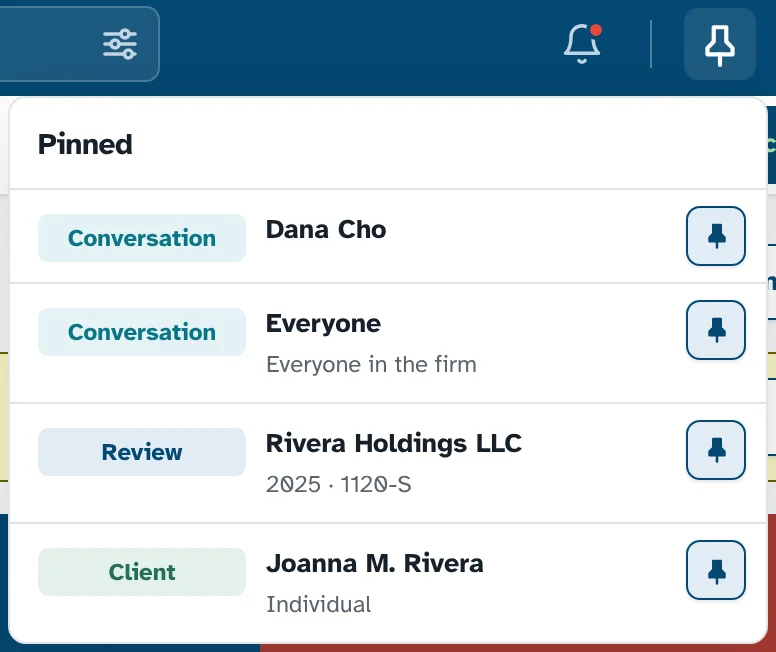
Pin what you keep going back to; it stays at the top of its list and in one Pinned list beside the bell.
- 1Click the square pin at the right end of a row or card on Reviews, Clients, Open items, Templates or Home.
- 2On a review or client page, click the pin at the right of the buttons at the top.
- 3In Messages, open the conversation, click ⋮ at the top and choose Add to Pinned.
- 4Click the pin beside the bell in the navy row to see everything you’ve pinned. Click one to open it.
- 5Click a pin again, or its pin in the list, to unpin it.
Good to know
- Nobody else sees your pins.
- Pinned things sit at the top of their own lists. Home’s lists show your pins plus five more.
- A pinned notification stays at the top of the bell and Home’s Your turn until you unpin it or clear it.
- Pinned conversations have their own Pinned section at the top of Messages.
 45