
Install the TaxReview2Do and Messages apps
For everyone · 1 min read
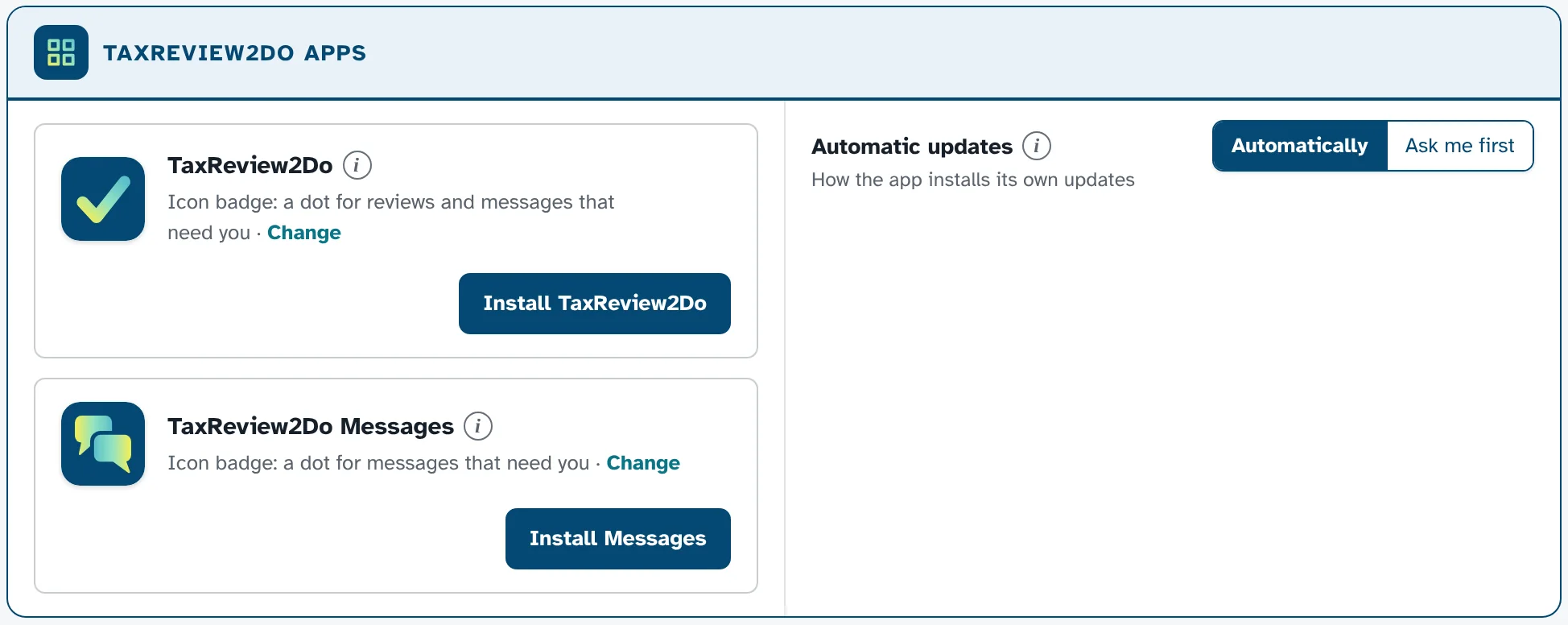
Install TaxReview2Do and TaxReview2Do Messages as apps, each with its own window and icon in your Dock or taskbar.
- 1Open Settings › Apps and integrations.
- 2Click Install beside TaxReview2Do on the TaxReview2Do apps card. Your browser asks; click Install in its box. If it doesn’t ask, a new tab shows the two clicks that do it.
- 3Click Install beside TaxReview2Do Messages. A new tab opens at Messages’ own address with an Install button; click it, then Install in your browser’s box.
- 4Find each one in your Dock or Start menu, with its own icon. Open beside each app opens it.
 24
Good to know
- Already installed? The install tab says so, and Chrome shows Open in at the right of the address bar.
- Chrome or Edge, on Windows or Mac, can install them; so can Safari on a Mac (File › Add to Dock).
- Nothing extra is downloaded: it’s the same TaxReview2Do in a window of its own.
- A red dot on an app’s icon means something needs you; never a number.
- Pop-ups and badges come only while an app is open, so minimize it instead of closing it.
- While the Messages app is open, it handles message pop-ups, and the Messages tab in TaxReview2Do offers Switch to it.
- Messages shows only if your firm uses it.