
Send a message or start a group
For everyone · 1 min read
Start a one-on-one or a group with anyone in your firm, from the pencil over your Messages list.
- 1Click Messages in the tab row.
- 2Click the pencil beside the search box over your list.
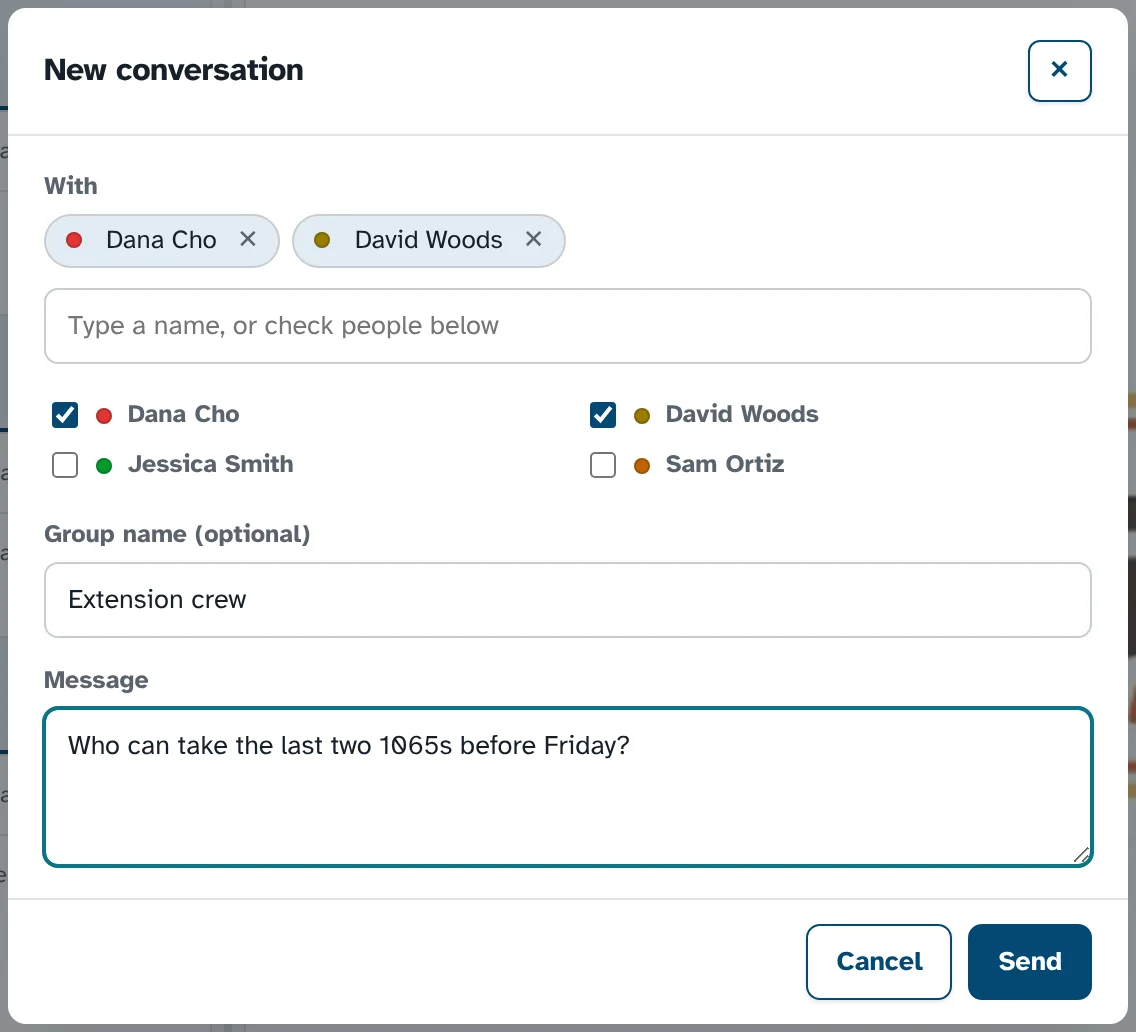
- 3Type a name, or check people in the list. One person is a one-on-one; several make a group.
- 4For a group, give it a Group name if you like.
- 5Write a first message and click Send (or Start to open it empty).
Good to know
- A green dot after a name means they’re here now; point at the name to see when they last were.
- Only people in your firm are listed; messages never leave it.
- Anyone in a group can rename it and add or remove people, from the ⋮ › Group settings. Someone added sees everything already said.
- Everyone is the whole firm. Groups by role (Admins, Tax managers, Reviewers, Preparers, Data entry) keep themselves up to date.
- Leave group is in the ⋮ at the top of a group. Groups by role and Everyone can’t be left or changed by hand.
 345