
Get pop-ups and a sound
For everyone · 1 min read
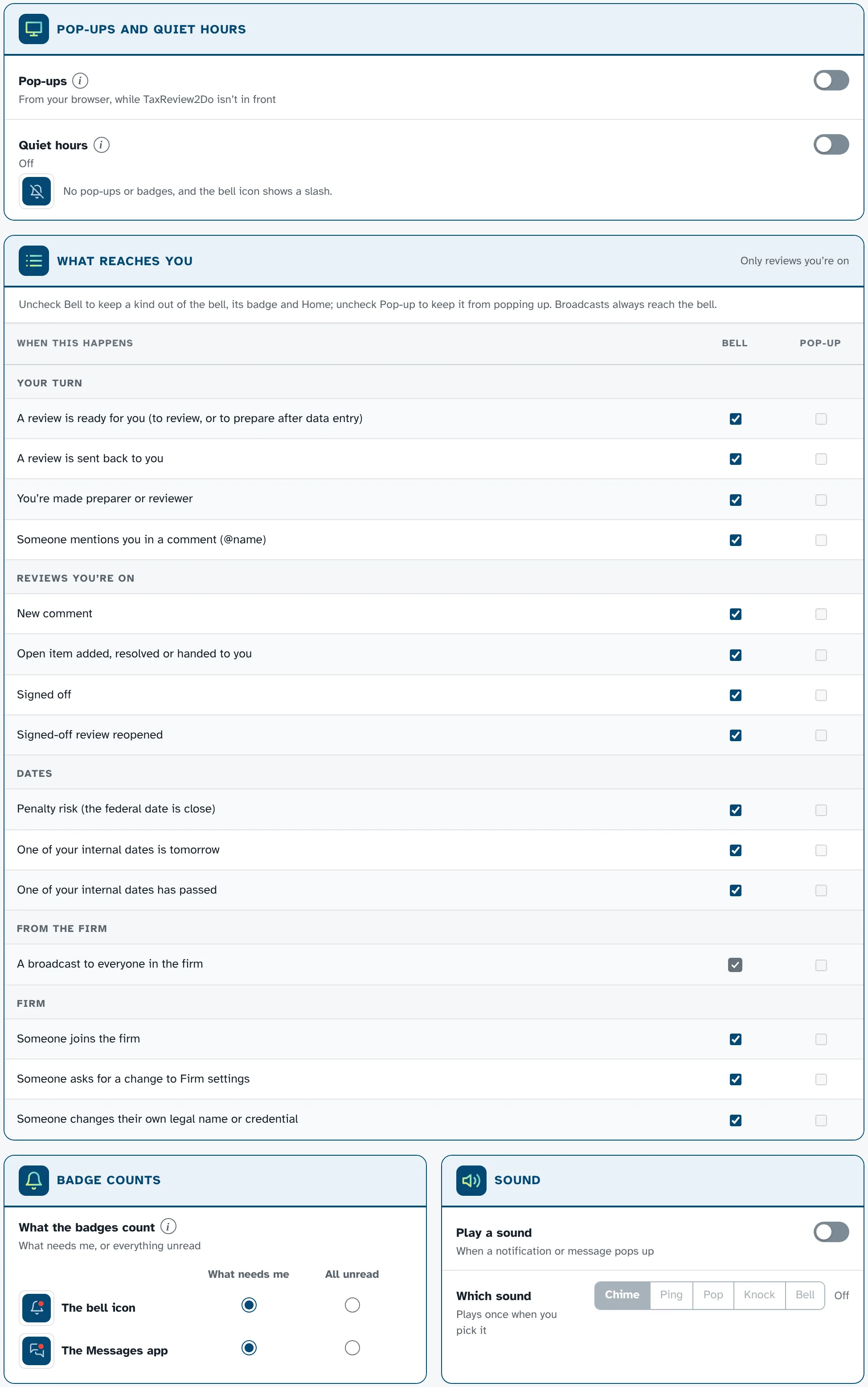
Get a pop-up on your computer, and a sound if you like, when something needs you and TaxReview2Do isn’t in front.
- 1Go to Settings › Notifications.
- 2Turn on Pop-ups, then click Allow when your browser asks.
- 3Under Reviews, choose What needs me or Everything; under Messages, What needs me (one-on-ones and @mentions), Everything or None.
- 4Click Send a test to check one shows.
- 5For a sound too, turn on Play a sound in Sound and pick Chime, Ping, Pop, Knock or Bell. Each plays as you pick it.
Good to know
- Pop-ups show only while TaxReview2Do isn’t in front, and never during quiet hours or Silence.
- Your choice follows you to every computer; a new computer asks you to Allow in the bell.
- If the Messages app is open, it pops up messages instead, so you never get two.
- The sound plays at most once a minute, only with a pop-up. A browser may stay silent in a tab you haven’t clicked in since it opened.
- Muted conversations never pop up, except an @mention.
- To stop one kind of review notification popping up, uncheck its Pop-up box in What reaches you on the same page.
 25