
Badges
For everyone · 1 min read
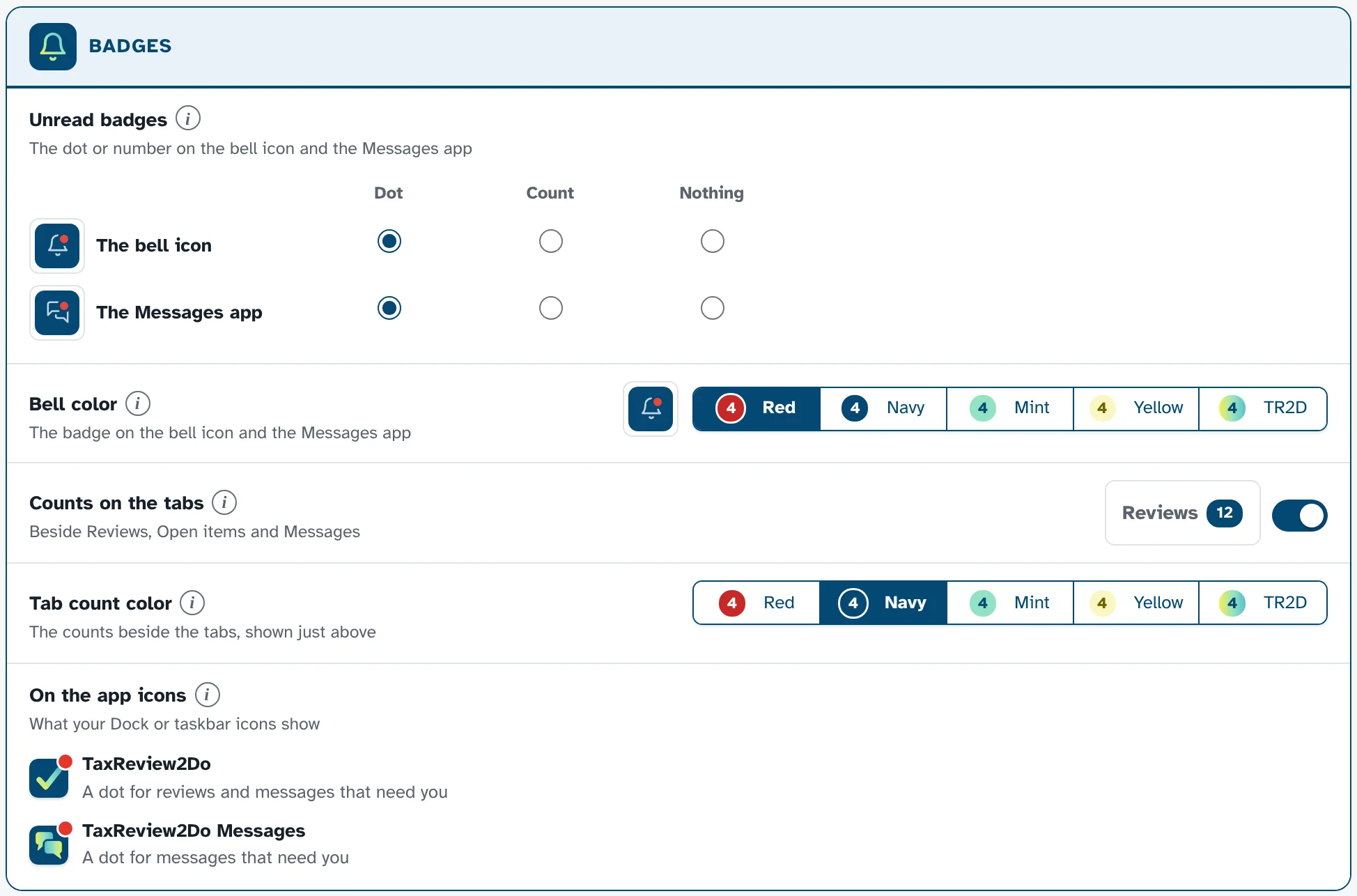
Choose a dot, a number or nothing on the bell, its color, and what the badges count.
- 1Go to Settings › Look and feel and find Badges, right under Accessibility.
- 2Under Unread badges, choose Dot, Count or Nothing, one choice for the bell icon and the Messages app, each shown as it will look.
- 3Pick a Bell color: red to start, or white, mint, yellow or TR2D.
- 4Turn Counts on the tabs on or off, and pick a Tab count color (navy to start).
- 5To change what the badges count, go to Settings › Notifications › What the badges count: What needs me or All unread.
- 6Under On the app icons, choose On or Off for the red dot on the installed apps’ Dock or taskbar icons.
 234
Good to know
- Over 20 shows ∞. Point at it for the real number.
- Installed apps show a red dot on their Dock or taskbar icon, never a number, and none during quiet hours or Silence.
- Every badge setting shows a preview, even when it’s off.
- No badge during quiet hours or while silenced; the bell shows a slash instead.