
Use the keyboard and a screen reader
For everyone · 1 min read
Every page works from the keyboard, and every icon-only button has a name for screen readers.
- 1Press Tab and Shift+Tab to move through a page. The control you’re on has an outline.
- 2Press Enter or Space to press a button, and Esc to close a menu or a box.
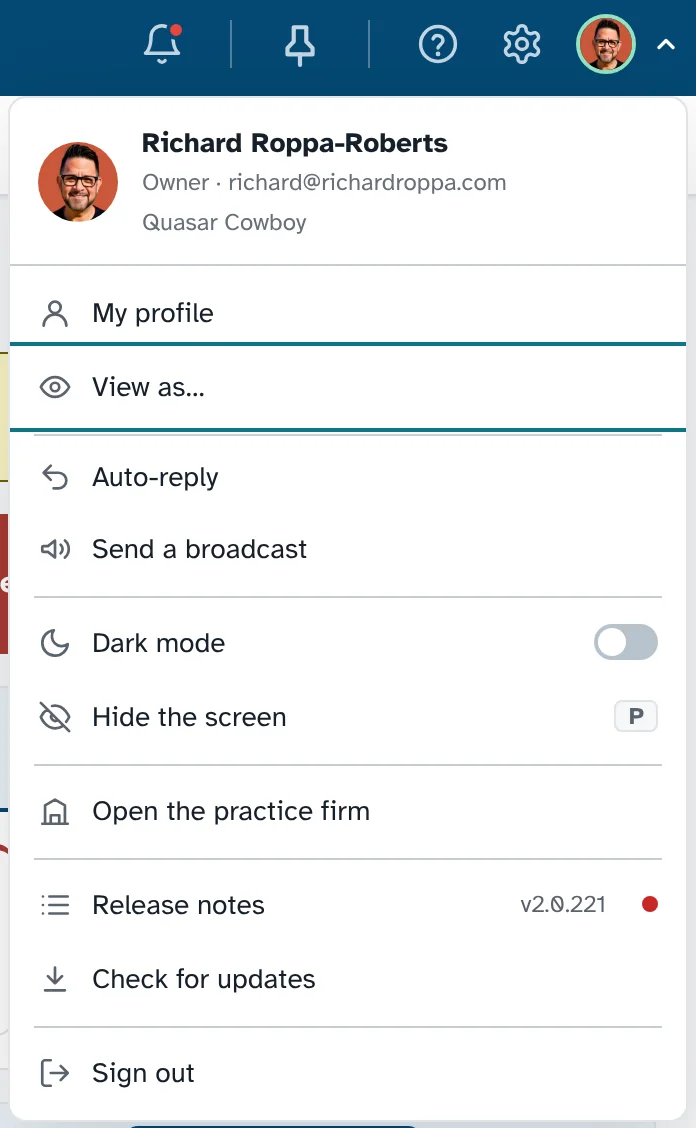
- 3Use ↓ and ↑ in menus and lists: your name menu (↓ on your name opens it), + New, the Messages drop-down and search results. Home and End jump to the first and last item.
- 4Turn on the keyboard shortcuts you want, like / for search.
Good to know
- Buttons that are only an icon, like the pin, the bell or a research tool’s logo, carry their name for screen readers.
- Pages have headings and landmarks, so you can jump between sections.
- Tables have column headings, so each cell is read with its column.
- Shortcuts never fire while you’re typing, so they won’t get in a screen reader’s way.
 3