
Make the text bigger or easier to read
For everyone · 1 min read
Make everything bigger, pick an easier font, or switch to dark, just for you.
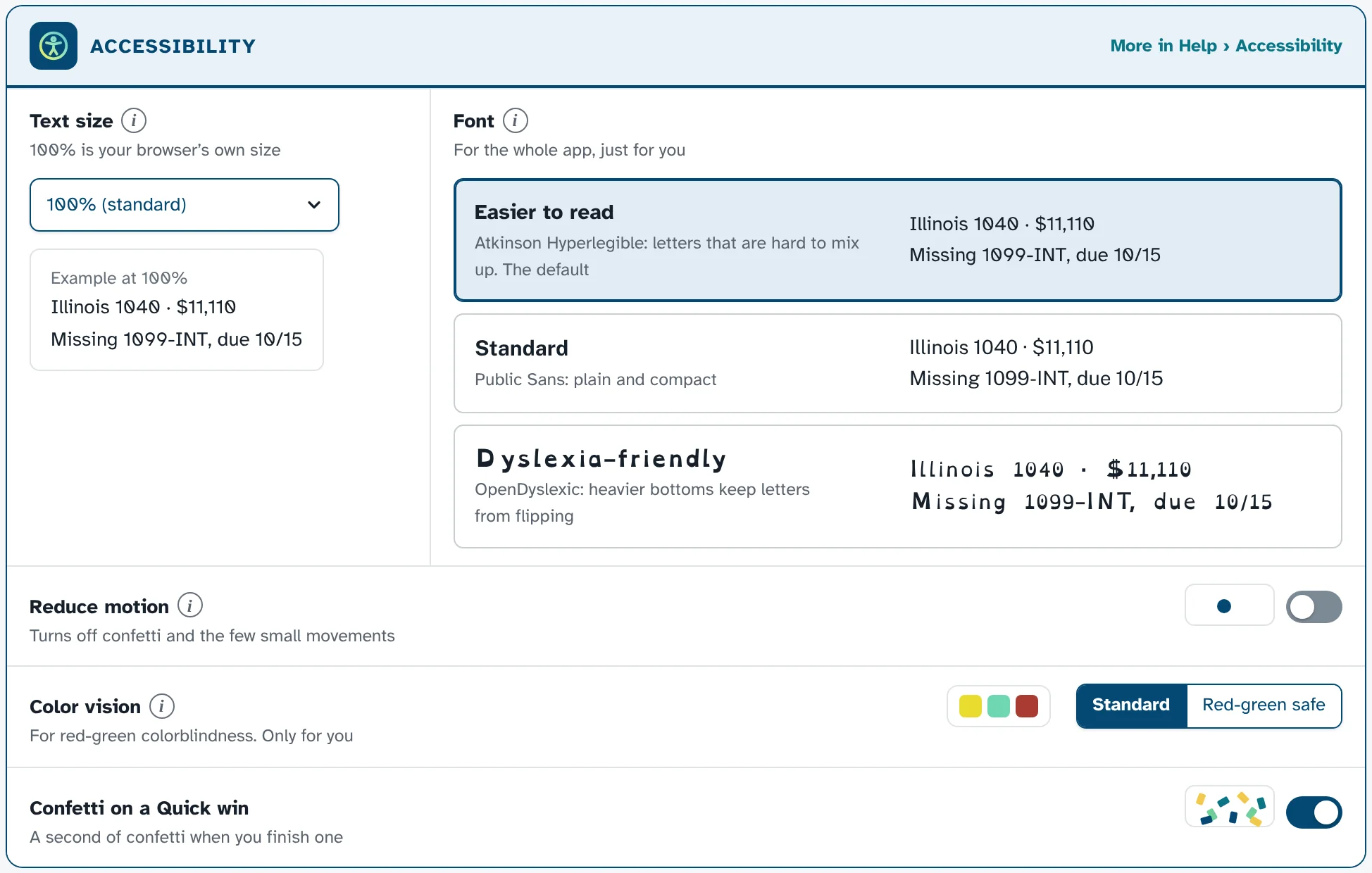
- 1Open Settings › Look and feel. Accessibility is the first card.
- 2Choose a Text size, from 50% to 140%. Text, buttons and spacing all grow together; 100% is your browser’s own size.
- 3Click a Font: Easier to read (the default), Standard or Dyslexia-friendly. Each shows a sample in itself.
- 4Under Light or dark, in the next card, choose Light, Dark or Match my computer.
 23
Good to know
- Everything here is just for you, and follows you to any computer you sign in on.
- Dyslexia-friendly uses OpenDyslexic, whose heavier bottoms help keep letters from flipping or swapping.
- Workpapers keep the standard font, so what you print looks the same for everyone.
- Every word on screen meets at least 4.5:1 contrast with what’s behind it, in light and dark.
- Your browser’s own zoom works too: Ctrl or ⌘ with the + key. Dark mode is also in your menu.