
Find a setting
For everyone · 1 min read
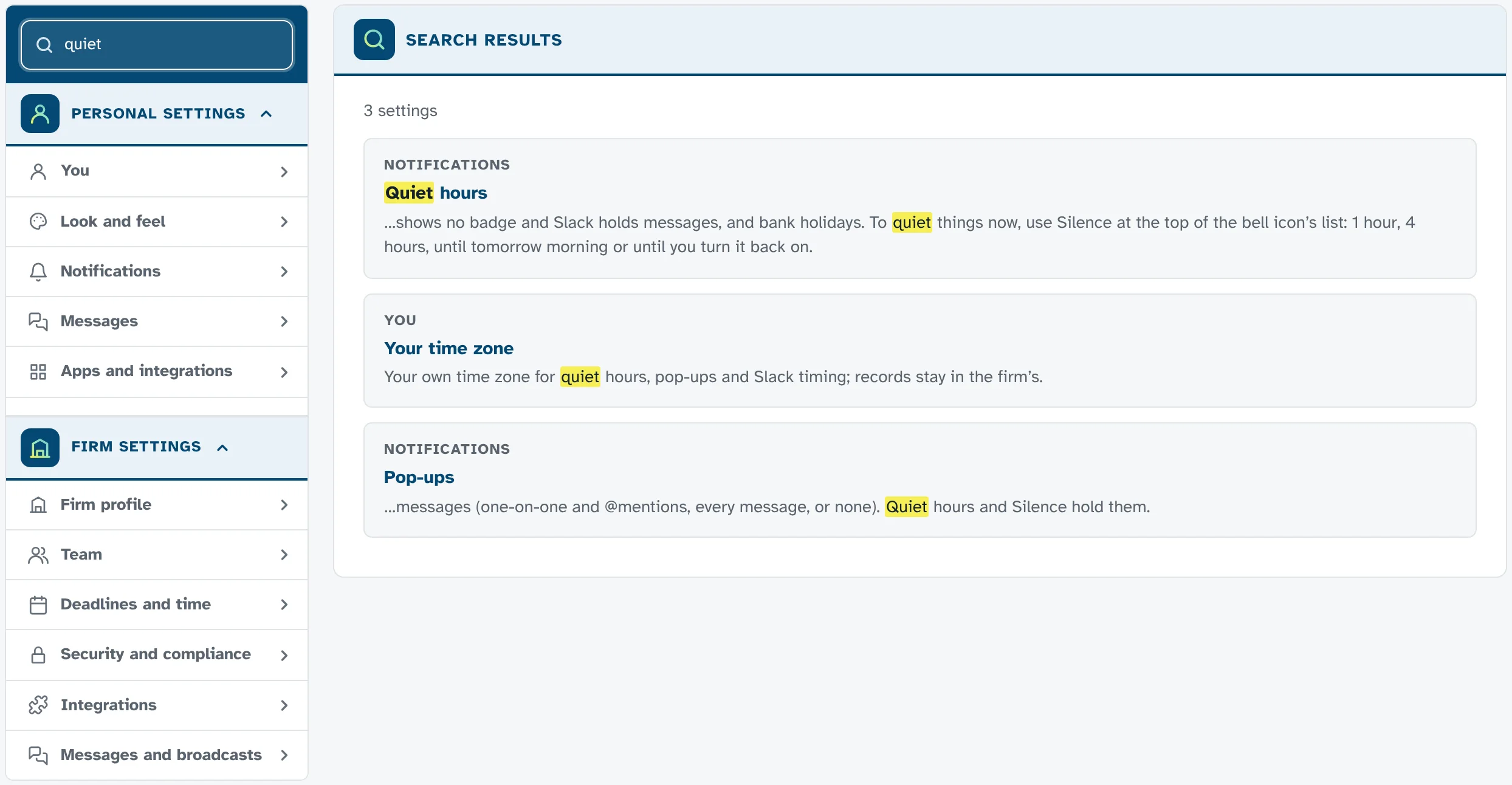
Search all settings by name or what it does, or open a page in the list and jump to the setting.
- 1Click Settings (the gear) in the navy row. It opens on your firm’s logo, with every page listed down the left.
- 2Type in Search all settings at the top of the list, like “quiet” or “badge”.
- 3Click a result. The page opens and the setting is outlined for a moment, so you can’t miss it.
- 4Or click a page in the list: it unfolds to its settings, and clicking one jumps to it.
 23
Good to know
- Eleven pages: five yours (You, Look and feel, Notifications, Messages, Apps and integrations) and six the firm’s.
- Personal settings are just for you and follow you to any computer.
- Everyone can read the firm’s settings. Owners and admins change them, and tax managers change Team and Messages and broadcasts. Everyone else gets Ask for a change.
- Firm settings start folded unless you’re an owner or admin. Click the band to open them.
- Everything saves on its own; a small “✓ Saved” shows where you made the change.