
Add your photo and Goes by name
For everyone · 1 min read
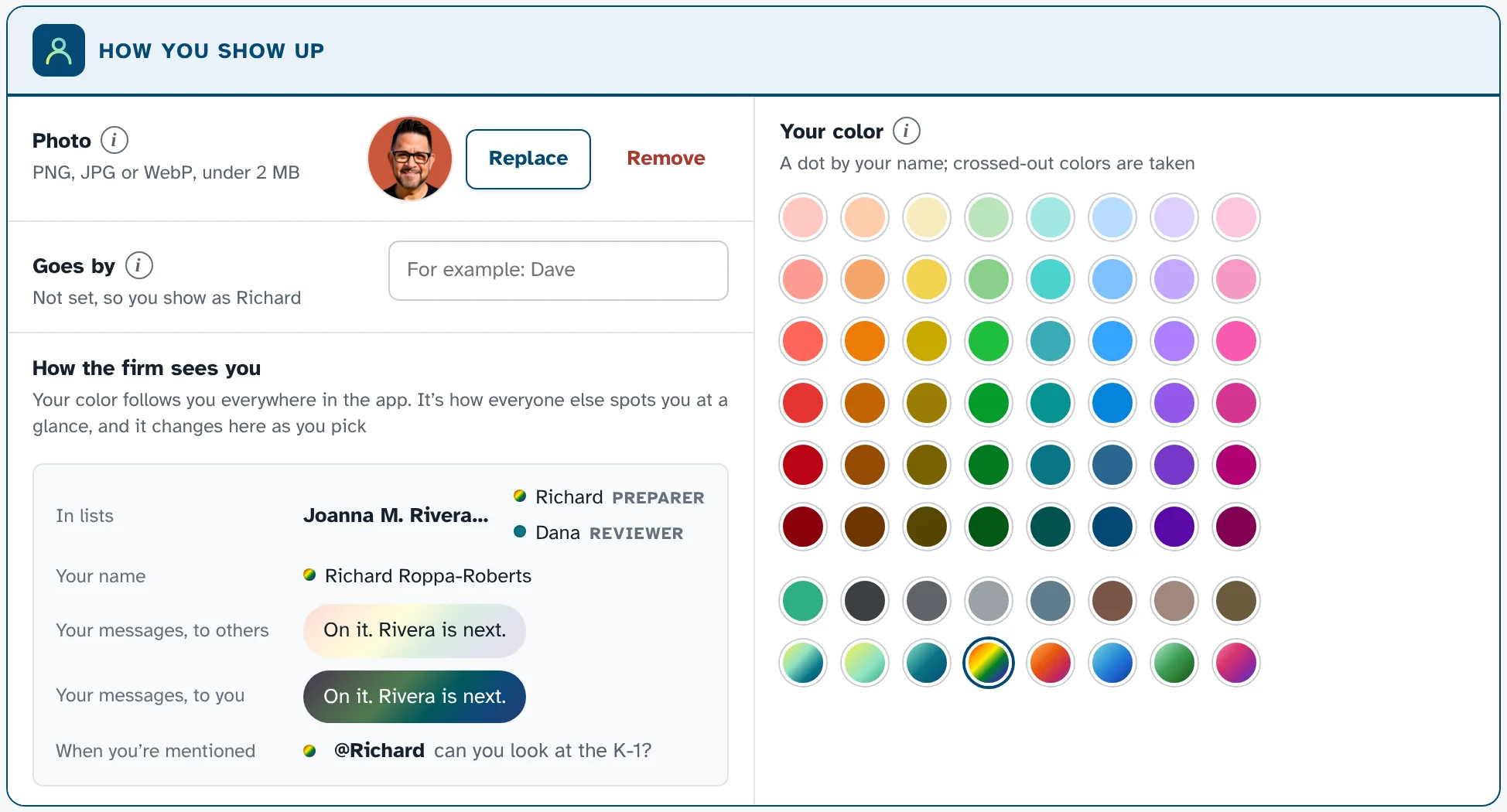
Add a photo and the name you go by, so the team knows who’s who; sign-offs keep your legal name.
- 1Open Settings › You, or click your first name in the navy row, then My profile.
- 2Under Photo, click Upload a photo and pick a PNG, JPG or WebP under 2 MB. It saves as soon as it’s up.
- 3In Goes by, type the first name you use, like “Dave” for David, and click away. It saves when you leave the box.
- 4Under On workpapers and sign-offs, check your Legal name and add your Credentials, like EA or CPA.
 23
Good to know
- Your photo shows at the top right and beside your name. Without one, your first name shows there; never initials.
- Goes by shows everywhere the firm sees you: lists, Messages, @mentions. Leave it empty to use your legal first name.
- No two people in a firm can go by the same name.
- Your legal name and credentials are only on sign-offs, workpapers, the audit trail and anything a client sees. Your firm’s owners are told when you change your legal name.
- Replace and Remove sit beside your photo once you have one.