
Use the menu under your name
For everyone · 1 min read
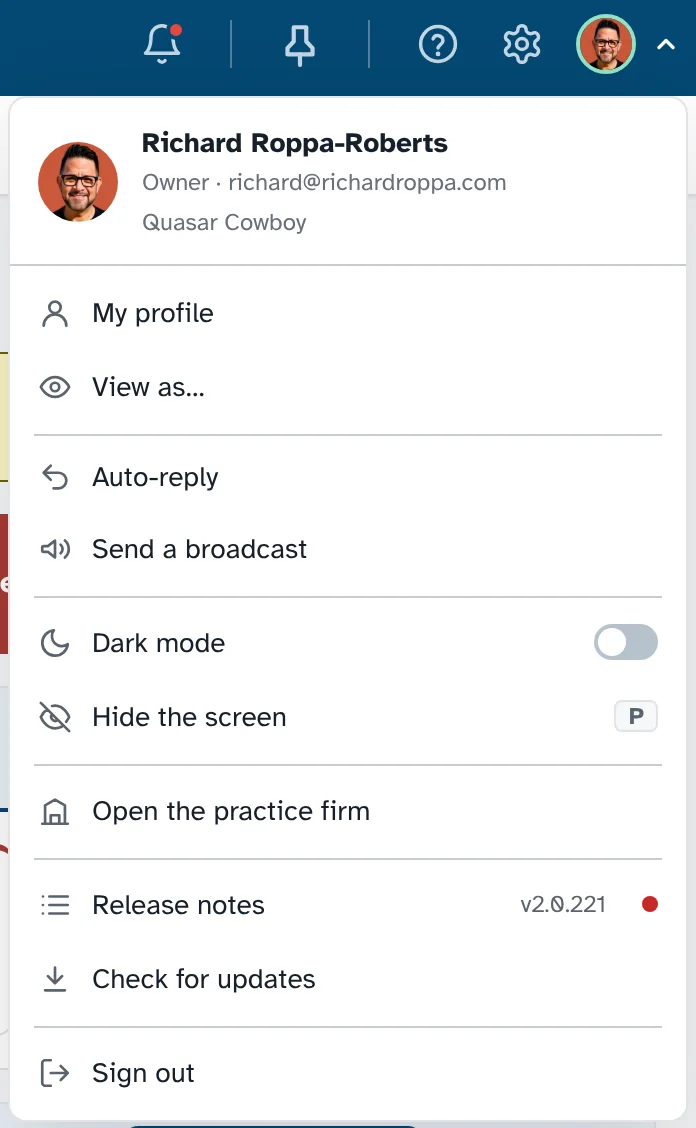
Your photo or first name at the right of the navy row opens a menu of things about you and the app.
- 1Click your photo or first name at the right of the navy row. The top of the menu shows your role, email and firm.
- 2Click My profile for your photo, Goes by name, color, time zone and sign-in.
- 3Click Auto-reply for days you’re out, or Send a broadcast if your role can send one.
- 4Click Dark mode to switch, or Hide the screen when a client walks by.
- 5Click Switch to Practice firm (or Open the practice firm the first time) to try anything safely.
- 6Use the last part for Release notes (a red dot means new ones), Check for updates and Sign out.
Good to know
- Owners and admins also see View as…, to see what someone else sees.
- Auto-reply shows only if your firm uses Messages; while yours is on, the menu says until when.
- Look and feel, Notifications and Keyboard shortcuts live in Settings, not here.
 1245