
Reopen a signed-off review
For owners, admins, tax managers and reviewers · 1 min read
Reopen a signed-off review with a reason to fix something, then sign it off again; the first sign-off stays on record.
- 1Open the signed-off review from Reviews › Signed off.
- 2Click ⊕ Action at the top right, then Reopen….
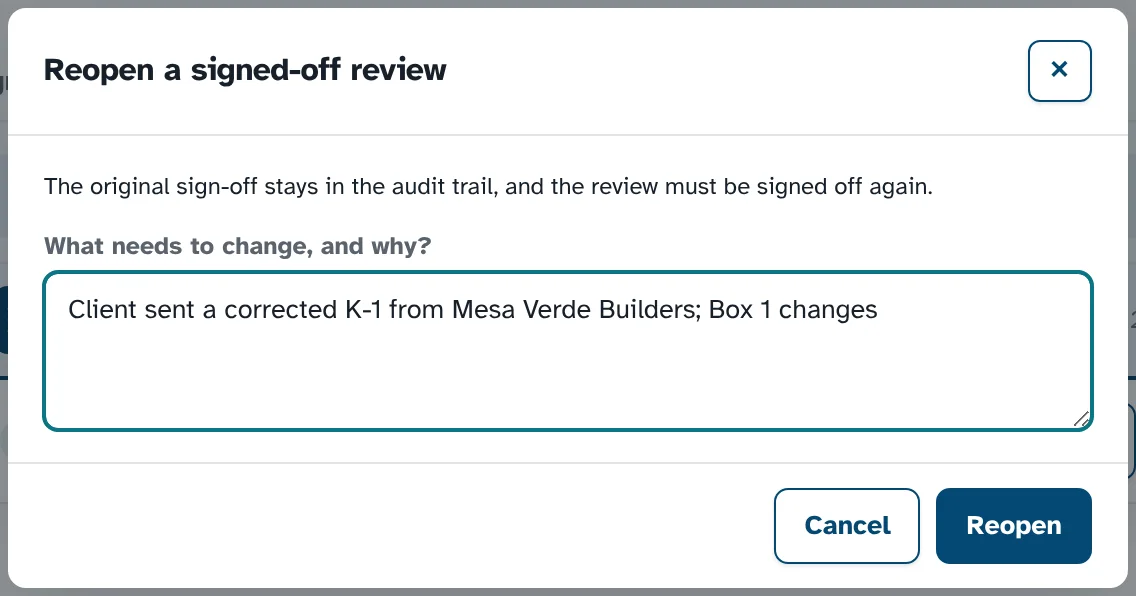
- 3Under What needs to change, and why?, give the reason.
- 4Click Reopen. The review goes back to Reviewing and its workpaper is a draft again.
- 5Make the change, then sign it off again.
 34
Good to know
- Reopening is a permission. By default owners, admins, tax managers and reviewers have it; change it per role, or for one person as a Plus, in Team.
- No Reopen… in the Action menu? Your role can’t reopen; the Sign-off tab says to ask an owner.
- The reason needs at least five characters.
- The first sign-off stays in the audit trail. The next sign-off saves a new copy of the workpaper.
- The preparer and reviewer get a notification that it was reopened.