
Find something in the audit trail
For everyone · 1 min read
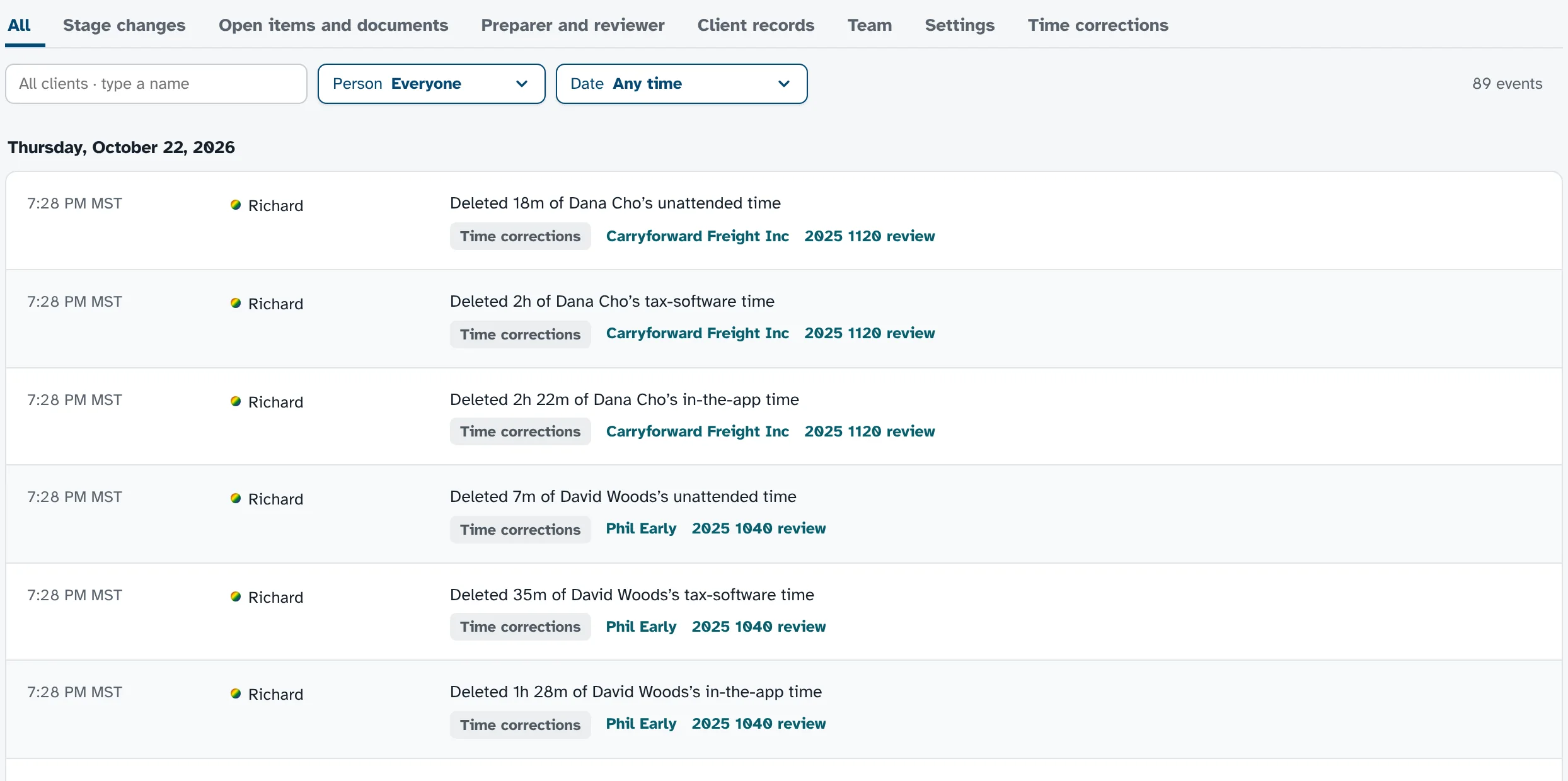
Find who did what and when, for the whole firm, one client or one review, and download it.
- 1Open the audit trail: Settings › Security and compliance, then Open the audit trail → in Audit trail. For one client, click Full audit trail for this client → on their page; for one review, open its Activity tab.
- 2Click a tab for the type of event, such as Stage changes or Preparer and reviewer.
- 3Narrow it with the client, Person and Date filters.
- 4Scroll back through the days, and click Show older for more.
- 5Click Download as CSV to save what’s showing.
 235
Good to know
- It records events, not keystrokes: stages, sign-offs, reopenings, open items, people, client details, team, settings and time fixes, plus dependents, workpaper notes, Take over editing, View as and ownership transfers.
- A client’s legal name, an EIN, a company’s entity type or year end, reopening and adding or removing a dependent always need a reason. Owners and admins choose which other changes do in Security and compliance › Changes that need a reason.
- Reasons print in the workpaper with the review’s events.
- Times are in your firm’s time zone, so everyone reads the same day; when your own is different, point at a time to see yours.
- Only types that have events get a tab, and each day’s heading stays at the top while you scroll through it.