
Set up multi-factor authentication
For everyone · 1 min read
Add an authenticator app so signing in takes your password and a code from your phone.
- 1Open Settings › You and scroll to Sign-in and security.
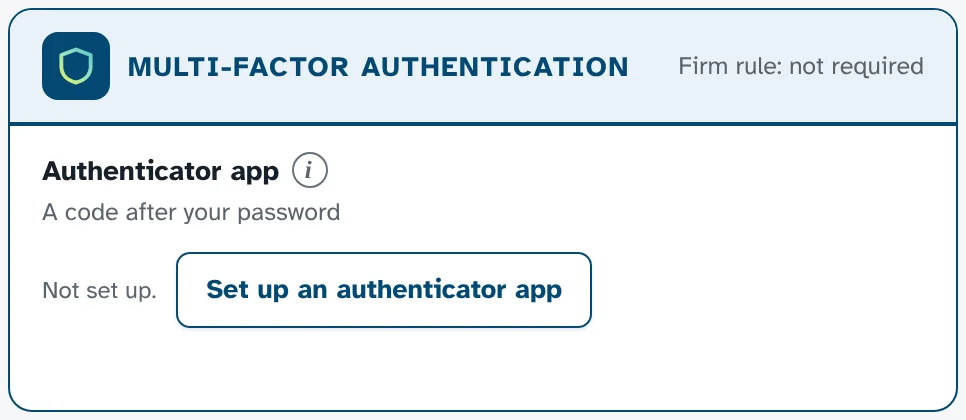
- 2Under Multi-factor authentication, click Set up beside Authenticator app.
- 3In an authenticator app on your phone (Google Authenticator, Microsoft Authenticator, 1Password or similar), add an account and scan the code. Can’t scan? Type the key shown instead.
- 4Type the 6-digit code the app shows and click Turn it on.
 2
Good to know
- No app yet? Right after your password, TaxReview2Do offers to set one up on the sign-in screen. Not now goes straight in.
- From then on, signing in asks for a code from the app after your password.
- Codes change every 30 seconds. “That code isn’t right”? Type the one showing now.
- No app? When your firm requires it, you get a 6-digit code by email instead. It works for 5 minutes.
- The card shows your firm’s rule, like “Firm rule: every 7 days”.
- To remove the app, click Remove and type a code from it one last time.