
When a review comes back to you
For preparers · 1 min read
When a reviewer sends a review back, fix each note, resolve it, and submit again.
- 1Open the review from the bell, or from Sent back to you on Home. It’s back in Preparing with a Round 2 tag.
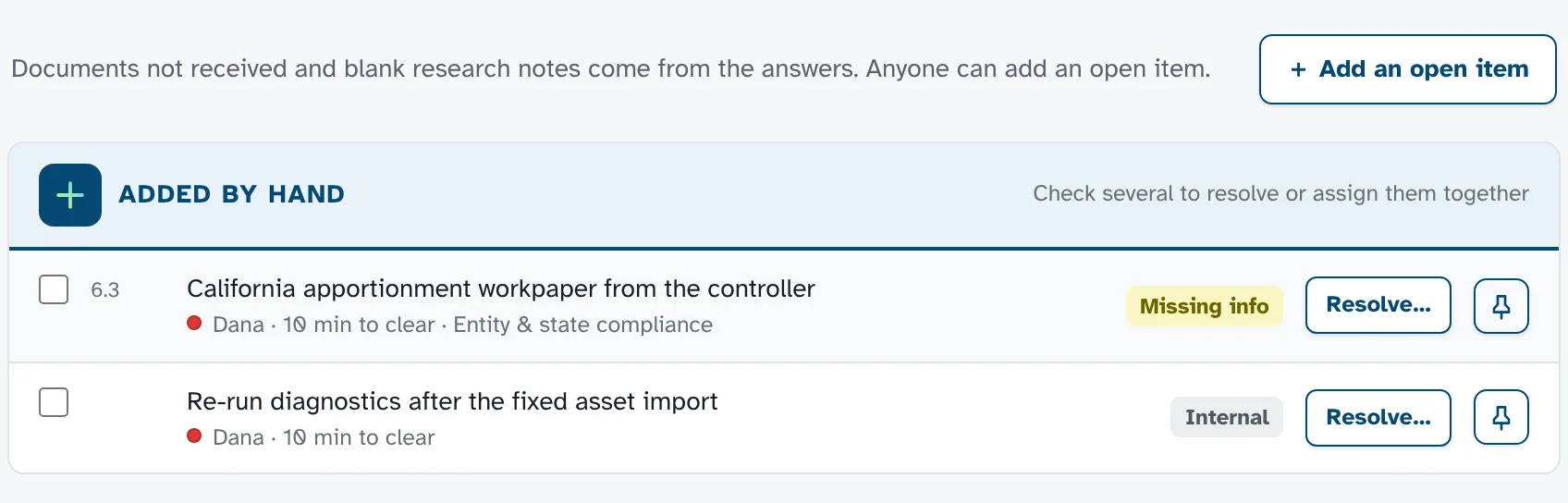
- 2Click its Open items tab. Each line the reviewer wrote is an open item for you, under Added by hand.
- 3Fix the first one, then click Resolve… and say what you did under What happened?.
- 4Do the same for the rest.
- 5Click Submit for review. It goes back to the reviewer’s queue.
 3
Good to know
- Your note under What happened? shows in the review’s Resolved column and on the workpaper, so the reviewer sees how each one was fixed.
- The reviewer can send it to someone other than the preparer. That person becomes the preparer.
- Each note becomes an Internal open item of about 15 minutes. Change its owner if someone else should do it.
- Rounds have no limit, and the workpaper keeps every round.