
Submit a review for review
For owners, admins, tax managers and preparers · 1 min read
Send a prepared review to the reviewer’s queue, with a note if you want one.
- 1Open the review while it’s Preparing.
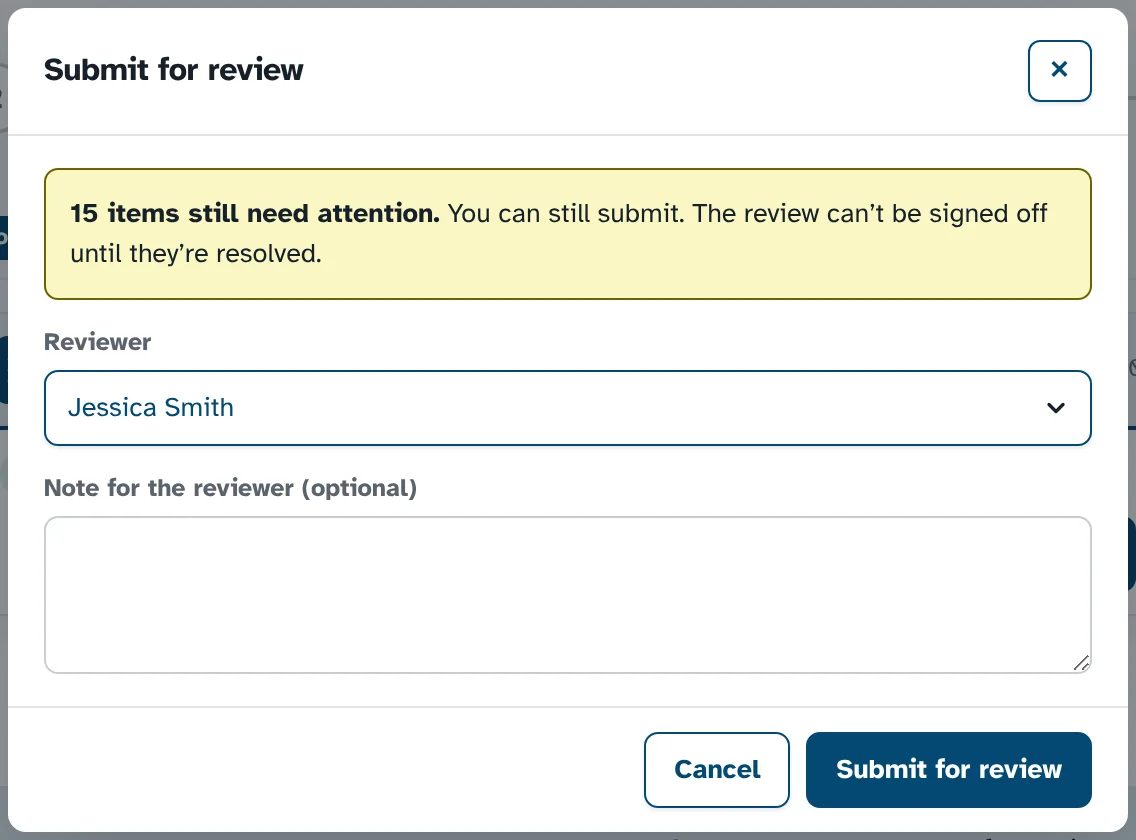
- 2Click Submit for review at the top right. The window says how many items still need attention.
- 3Check the Reviewer, or choose one.
- 4Add a Note for the reviewer if there’s something they should know first.
- 5Click Submit for review. The review moves to In review queue, and the reviewer is told.
Good to know
- You can submit with items still open. The review just can’t be signed off until they’re resolved.
- No Reviewer box? Your role can’t assign reviewers. It goes to the reviewer already named, or into the review queue, where tax managers (or, without any, owners and admins) are told it needs one.
- The note shows on the review’s Activity tab beside “Submitted for review”.
- Submitting hands the review on, so you stop being its editor straight away.
- On Home it moves from Yours to prepare to With the reviewer.
 345