
Answer the questions and see last year’s answer
For owners, admins, tax managers, reviewers and preparers · 2 min read
Work through a review’s questions section by section, with the guidance and last year’s answer beside each one.
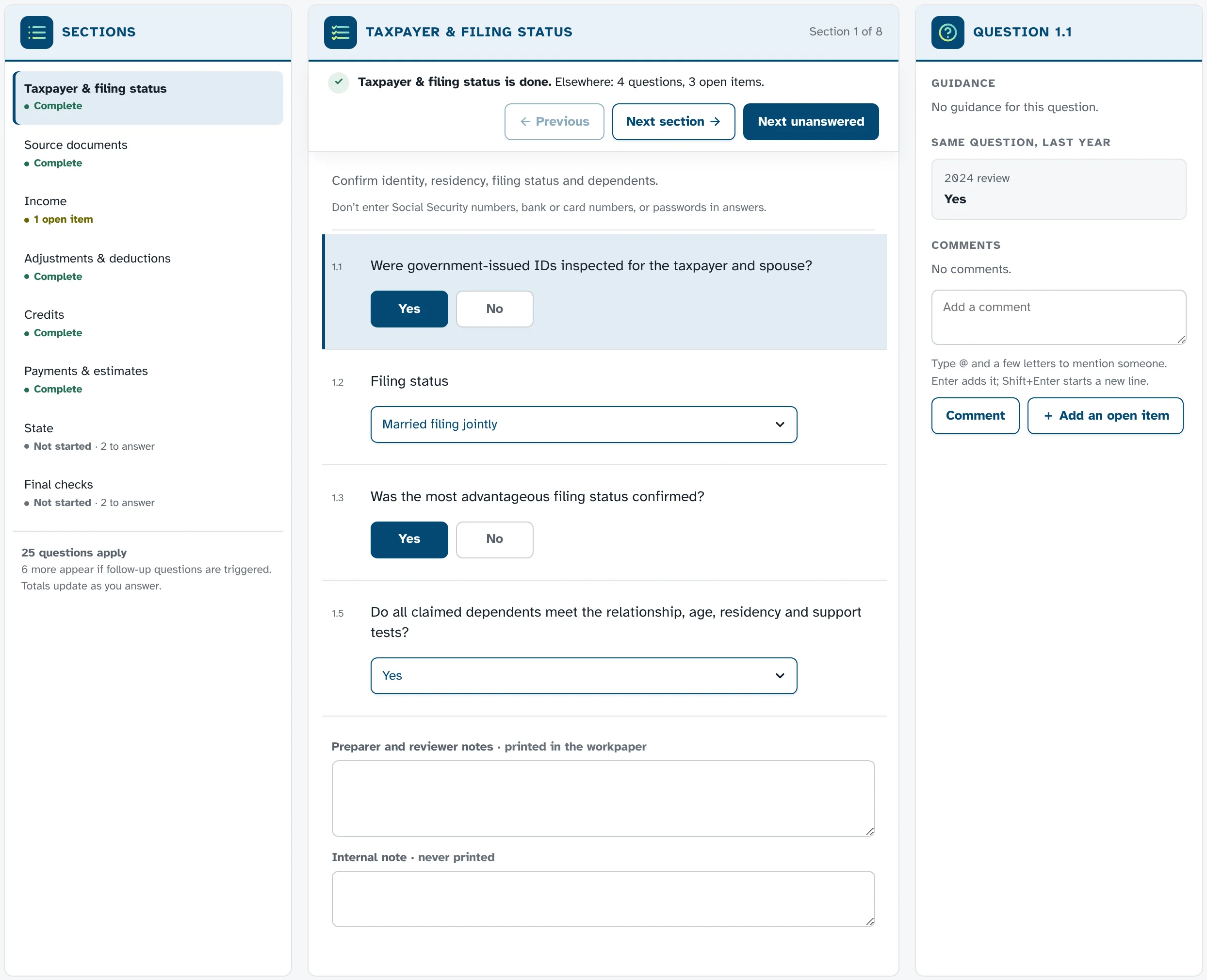
- 1Open the review and pick a section from Sections on the left. Each says how many are left, “11 to answer”, or Complete.
- 2Click Next unanswered to jump to the next question still to answer, or use ← Previous and Next section →.
- 3Answer the question. It saves on its own, and a small “✓ Saved” shows where you made the change.
- 4Look at the Question panel on the right: the guidance, Same question, last year, and the comments.
- 5Add anything the reviewer should read in Preparer and reviewer notes at the bottom of the section.
Good to know
- The bar at the top of the questions says what’s left in this section and what comes next.
- Some answers open follow-up questions, marked “Because 2.1 is Yes”. They count once they appear.
- Last year’s answer comes from last year’s signed-off review of the same client. No signed-off review, no answer to show.
- A documents list has three checks on every document: Received, Reviewed (you looked at it) and Entered (it’s in the tax software). An empty list offers Bring last year’s list, with every check cleared.
- Preparer and reviewer notes print on the workpaper. The Internal note under them never does.
- Never type Social Security, bank or card numbers, or passwords in answers.
- While you answer, you’re the review’s one editor; others see that you’re editing. See When someone else is editing.
 124