
Write, edit and react to a message
For everyone · 1 min read
Write with bold, lists, @mentions and screenshots; reply under a message, react with an emoji, edit or delete yours.
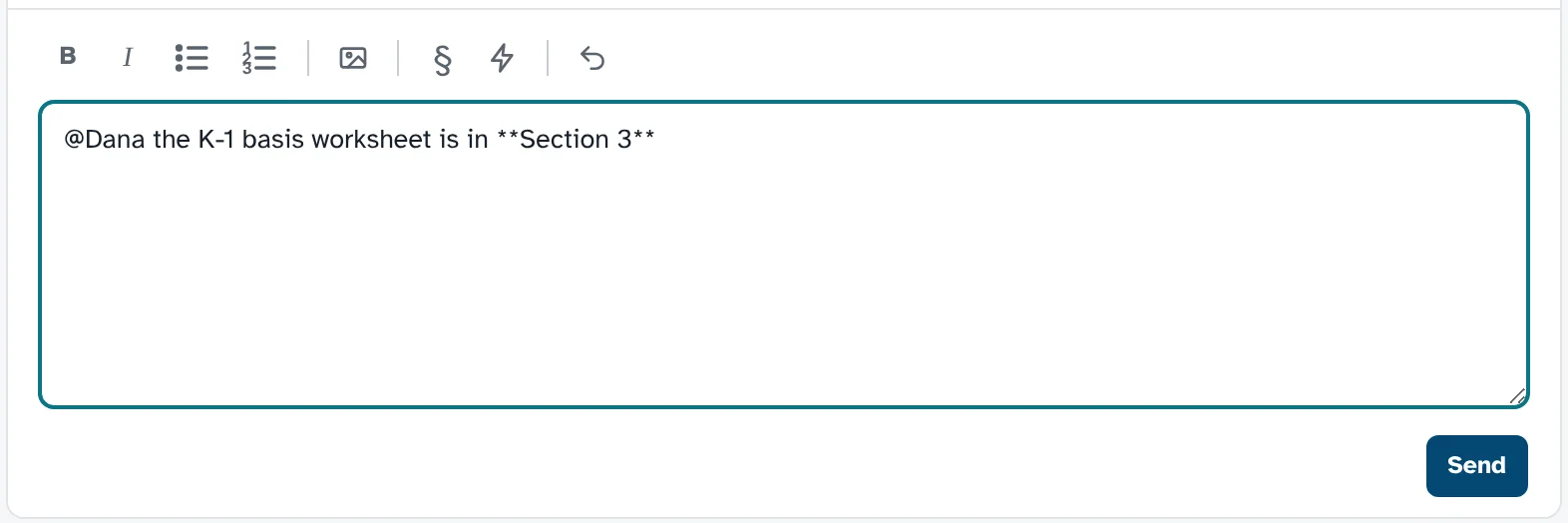
- 1Open a conversation and click in the box at the bottom.
- 2Type your message. The buttons over the box add B (bold), I (italic), lists, a screenshot, § (a section sign) and your Quick messages.
- 3To mention someone, type @ and a few letters, then pick them from the list.
- 4Press Enter, or click the arrow in the box. Shift+Enter starts a new line.
- 5Point at any message for its toolbar: an emoji, Reply to answer right under it, and ⋯ for Copy text, Edit or Delete.
 24
Good to know
- Paste, drag in or add up to four screenshots. Links open in a new tab.
- Anything that looks like an SSN or an EIN, and any screenshot, asks first: Edit or Send anyway.
- You can edit your own message for 15 minutes. Enter saves the edit; Esc cancels. A deleted one shows as “Message deleted”; replies under it stay.
- Click an emoji chip to add yours or take it back. The firm’s three come first, then your own three, and + for any.
- Something typed and not sent stays as a draft for that conversation. Set your quick messages and emoji in Settings › Messages.