
Put your review dates in your own calendar
For everyone · 1 min read
Add your own review dates to Google, Outlook, Apple, Proton, Thunderbird or Zoho Calendar, kept up to date as dates move.
- 1Go to Settings › Apps and integrations and click Set up on Your calendar.
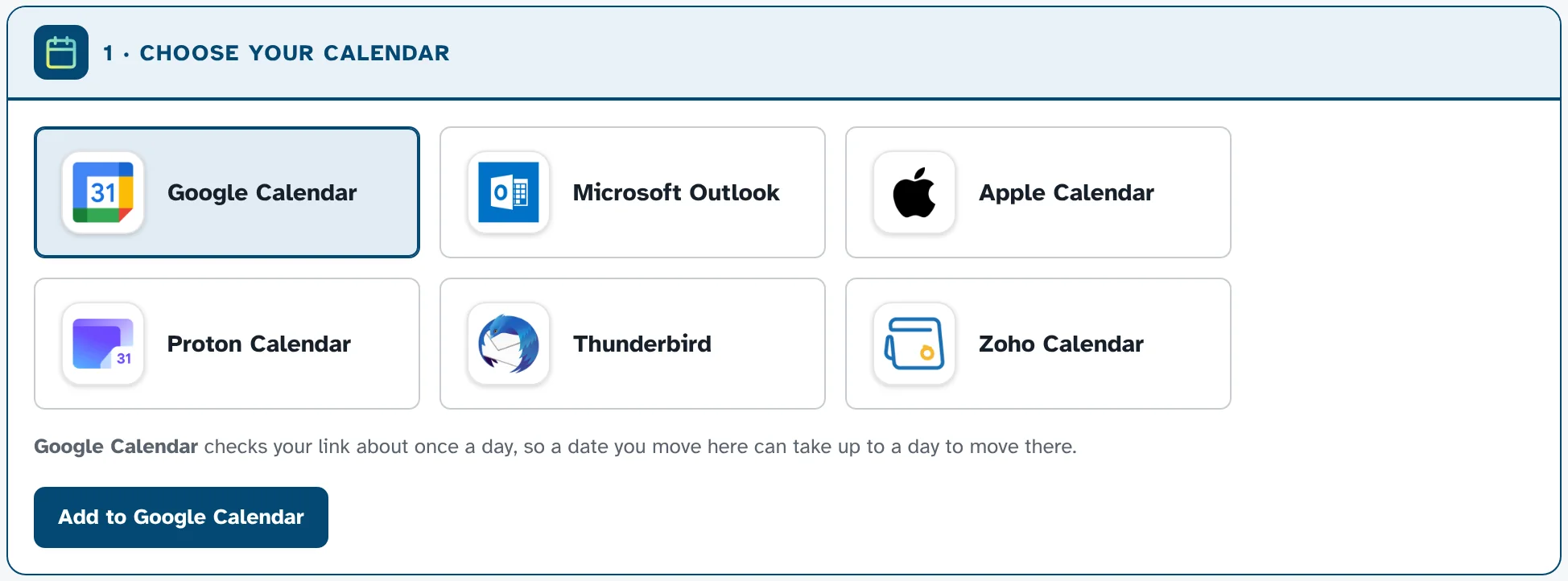
- 2Under 1 · Choose your calendar, click yours: Google Calendar, Microsoft Outlook, Apple Calendar, Proton Calendar, Thunderbird or Zoho Calendar.
- 3Click Add to your calendar. It opens with the address filled in; Proton and Zoho copy the address and say where to paste it.
- 4Confirm in your calendar. The tile in Apps and integrations says Connected once your calendar has fetched it.
- 5Under 2 · What your entries say, choose initials (J.R. · sign off by) or full names.
 23
Good to know
- Only your reviews that aren’t signed off, and only your steps: Start by and To review by while you prepare; Sign off by and the federal or extended due date for the reviewer (or the preparer while there’s no reviewer).
- Calendars check for changes on their own: Apple and Thunderbird as often as every 5 minutes, Outlook about every 3 hours, Proton and Zoho every few hours, Google about once a day.
- Reset link if the address got out; the old one stops working. Turn off stops every calendar that has it.
- It’s yours alone; each person turns on their own.