
Choose which notifications you get
For everyone · 1 min read
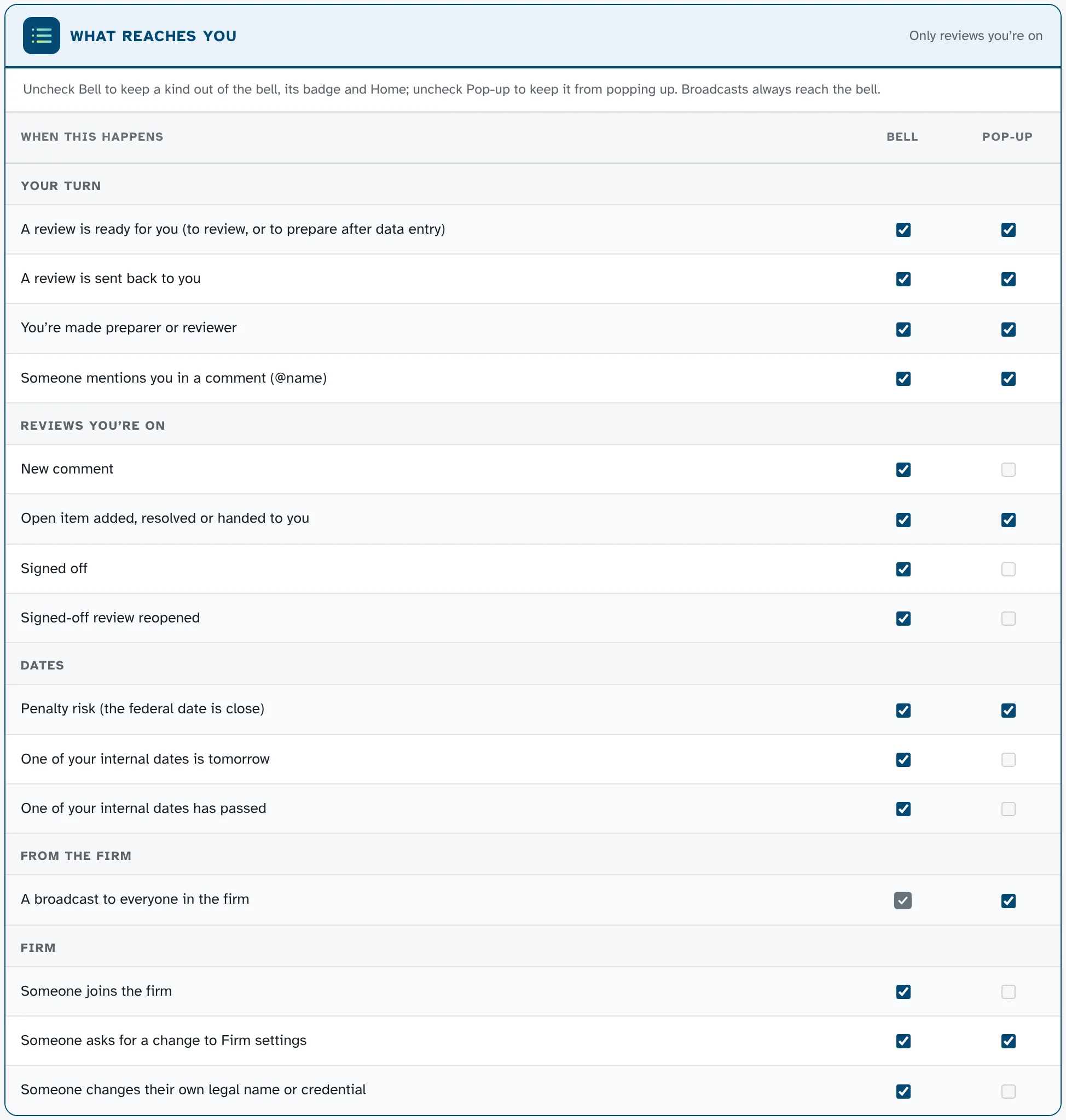
Choose, kind by kind, what reaches your bell and what pops up on your computer.
- 1Go to Settings › Notifications and find What reaches you.
- 2Each row is one kind of notification: a review ready for you, sent back, a comment, penalty risk and the rest.
- 3Uncheck Bell to keep that kind out of the bell, its badge, Home’s Your turn and pop-ups.
- 4Uncheck Pop-up to keep it in the bell but stop it popping up on your computer.
- 5It saves as you check. Check the box again to get them back.
Good to know
- Broadcasts always reach your bell; their box can’t be unchecked.
- The Pop-up boxes work once Pop-ups is on. Set to What needs me, only those kinds can pop up.
- Once your firm connects Slack, the table gets an In Slack column: Right away, in the roundup, or Not in Slack.
- You hear only about reviews you’re on, and never about your own actions.
 34