
Add a client
For everyone · 1 min read
Add an individual or a company by hand, with one required name; Social Security numbers are never stored.
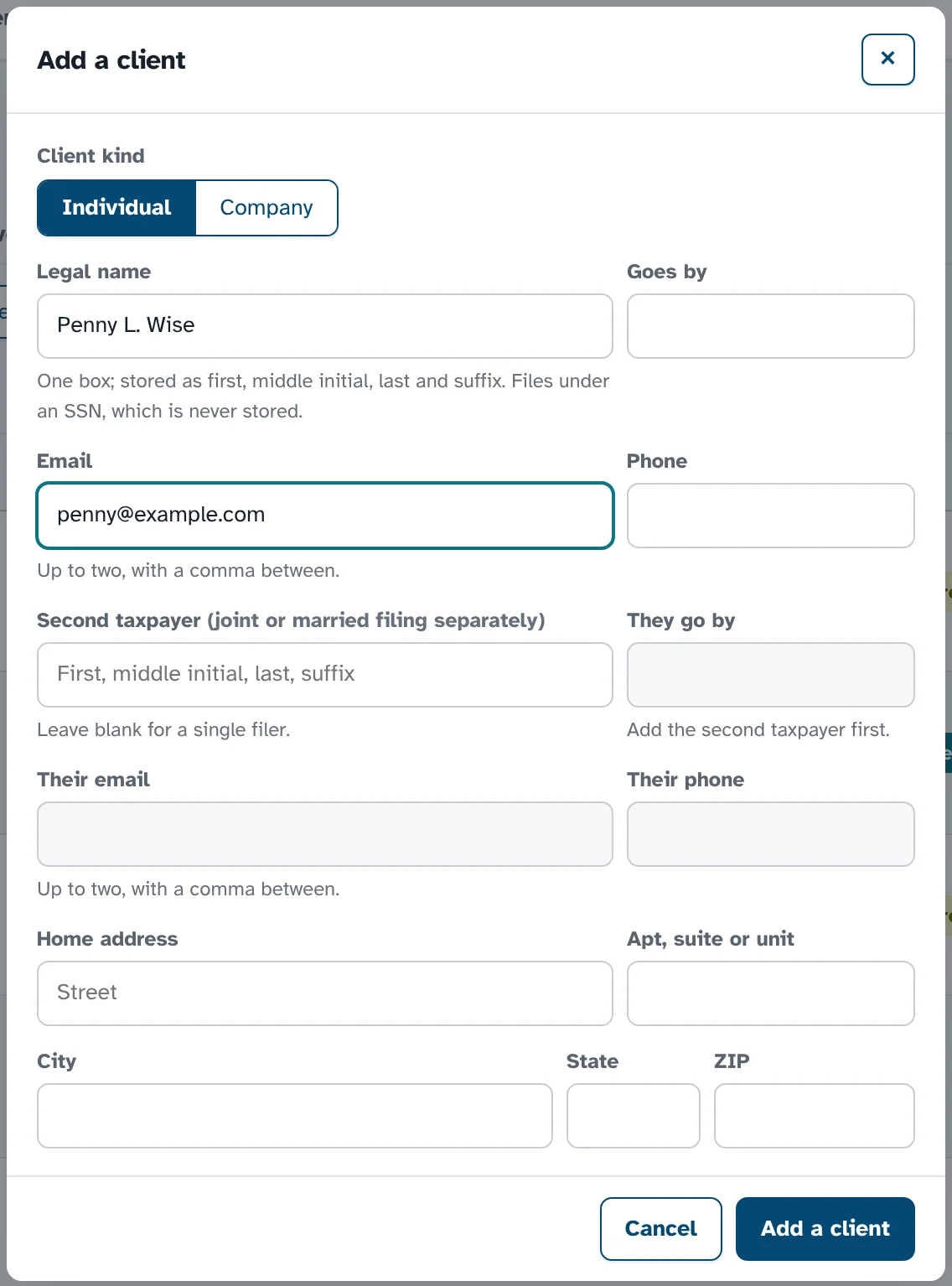
- 1Go to Clients and click ⊕ Add a client at the top right.
- 2Choose Individual or Company.
- 3Type the one name it needs: an individual’s Legal name (first, middle initial, last and suffix in one box), or a company’s Legal name.
- 4Fill in what you have: email, phone and address; a Second taxpayer for a joint return; for a company its EIN, Files under, Taxed as, fiscal year end and states.
- 5Click Add a client. Its page opens, ready for + Start a review.
Good to know
- Social Security numbers are never stored. An individual files under an SSN; a disregarded entity can choose The owner’s SSN, and the number stays out of TaxReview2Do.
- Changing a legal name, EIN, entity type or year end later asks for a reason, which goes in the audit trail. The old name is kept as a former name.
- For a client abroad, check Foreign address and choose the Country first. The words under the boxes change to that country’s (Postcode, Eircode, Prefecture…), and the address shows the way that country writes it, country on the last line.
- No client documents are stored either: keep them in your client file or TaxDome.
- Using TaxDome? Import your clients from TaxDome instead of typing them in.
 235