
Import clients from TaxDome
For owners and admins · 2 min read
Bring your client list over from TaxDome’s two exports, linked to TaxDome, and update it any time.
- 1Go to Clients and click Import from TaxDome.
- 2In Your TaxDome, paste your firm’s TaxDome address, then export Clients › Accounts and Clients › Contacts from TaxDome. Click Next: drop the files.
- 3Drop both .zip files from TaxDome’s emails (no need to unzip), or click Choose files. Click Next: check the clients.
- 4Look at anything marked Needs a decision and pick what to do: link it to a client you have, add it as new, or Skip.
- 5Click Import with the number of clients. Each one comes in linked to its TaxDome account.
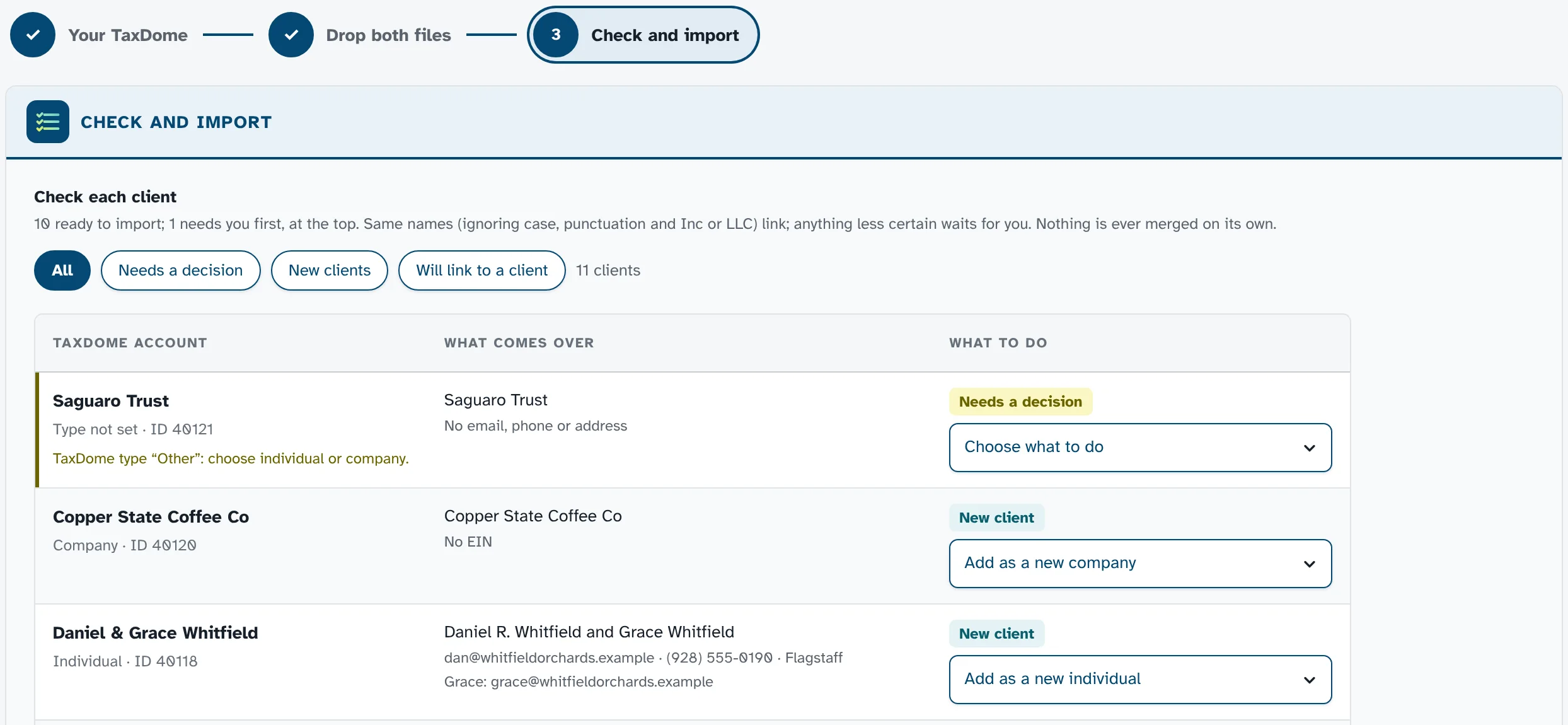 4
Good to know
- Owners and admins only, and only once your firm has said it uses TaxDome (Getting started, or Settings › Integrations › TaxDome).
- Social Security numbers and dates of birth are never read, even if a column holds them. No documents come over.
- Names and EINs already here are never overwritten, and nothing in TaxDome changes.
- Columns are matched by TaxDome’s names. If a required one doesn’t match, the Columns table opens; Check columns shows it any time.
- Joint accounts bring both taxpayers. Every client added or linked gets an entry in the audit trail.
- With the address saved, Open this client in TaxDome ↗ on a client’s page goes straight to them in TaxDome.