
Publish a new version
For owners, admins, tax managers and reviewers · 1 min read
Publish your template changes as a new version with a note on why, so reviews not signed off can choose to take them.
- 1Open your firm’s template from Templates and click Edit (or Continue editing).
- 2Make your changes, then click Publish v1.1… at the top right. The button names the next version.
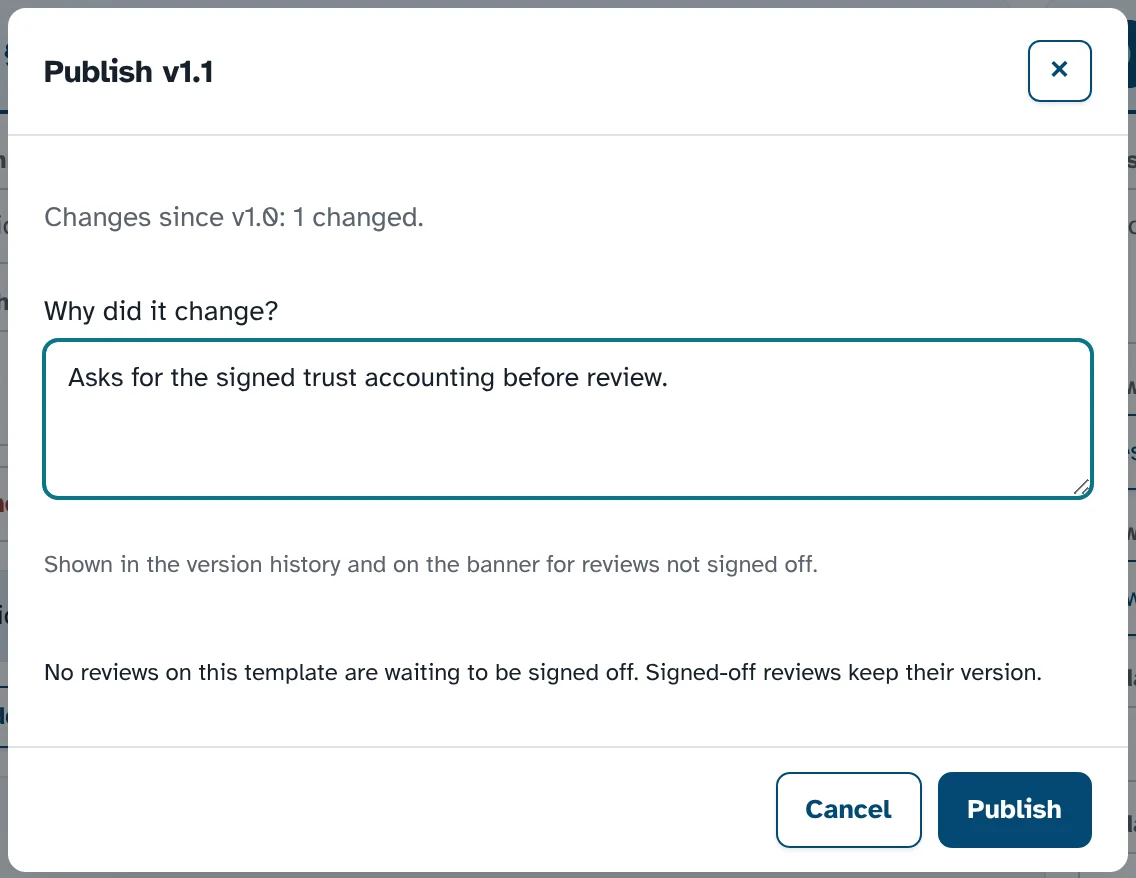
- 3Under Why did it change?, say what’s different and why.
- 4Click Publish. Reviews not signed off on this template are offered Compare, Keep or Migrate.
Good to know
- The window lists what changed since the last version, like “Changes since v1.0: 2 questions added, 1 removed”.
- It won’t publish until problems are fixed: a question with no wording, a choice question with fewer than two choices, or a Show this question when pointing at a question that’s gone. It lists each one under Fix these first.
- Publish stays gray until something has changed since the last version.
- Signed-off reviews keep the version they were signed on.
- The template’s page keeps a Version history: every version, who published it, when and why, with Compare with the one before.
- Library templates can’t be published from your firm; Duplicate to edit makes your own copy.
 34