
Track e-file and the 8879
For owners, admins, tax managers, tax admins, reviewers and preparers · 2 min read
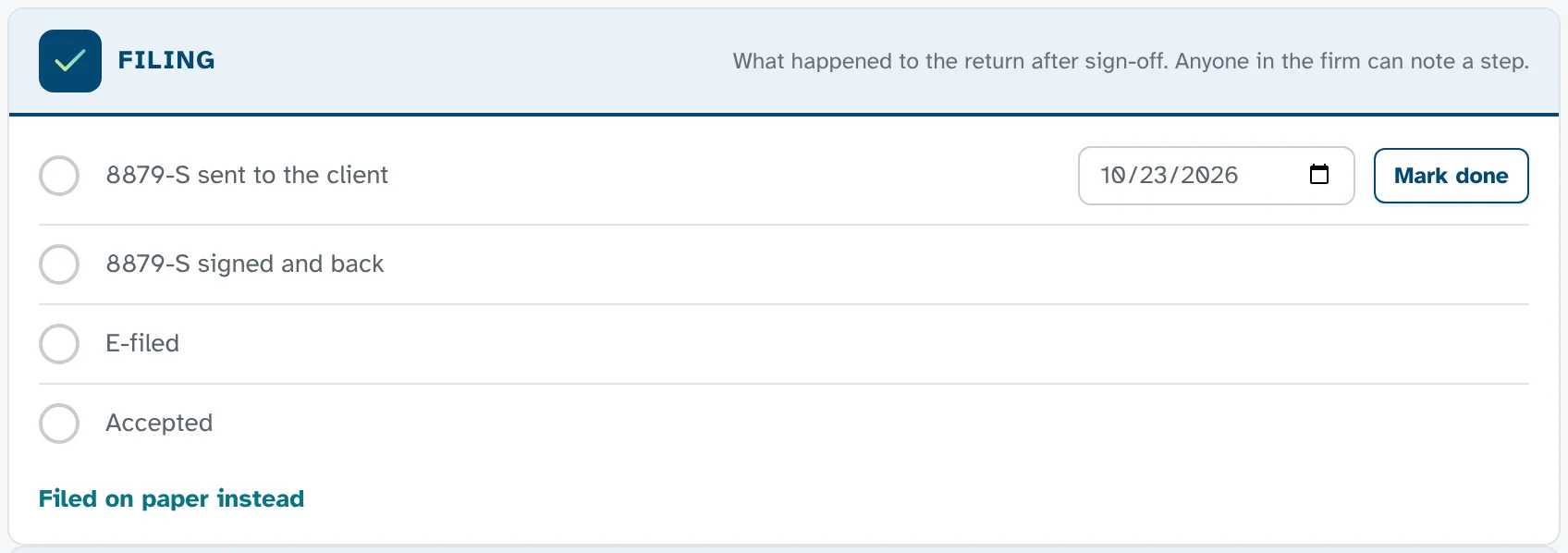
Every return starts as E-file. After sign-off, click Filing in the bar under the review’s name to note each step.
- 1Nothing to set while reviewing: Federal and the client’s states all start as E-file.
- 2After sign-off, click Filing in the bar under the review’s name. A list drops down.
- 3Click Mark done beside Sent to client, then beside 8879 signed. Each button marks today; click a date to change it.
- 4Each place has its own row: Submitted, then Accepted or Rejected; paper ones Mailed. Click e-file or paper on a row to switch it, and Add a state for one that’s missing. The drop-down beside it says what it’s for: Return, Annual report, Franchise tax, City or local tax, Personal property tax… (type the county or city), or Other… (type what it is). A state can go on as many times as you need. When every place is accepted or mailed, the step reads Filed with ✓ and the date.
 34
Good to know
- The form follows the return: an 1120-S shows 8879-S, a 1065 8879-PE, an 1120 8879-C.
- A return that’s all paper skips 8879 signed.
- Rejected? Filing turns red. Fix it, then click Sent again. If the fix changes the return, reopen the review instead.
- Every step, date change and Undo goes in the audit trail.
- Anyone in the firm can note a step; the review stays signed off and locked.