
See what someone else sees (View as)
For owners and admins · 1 min read
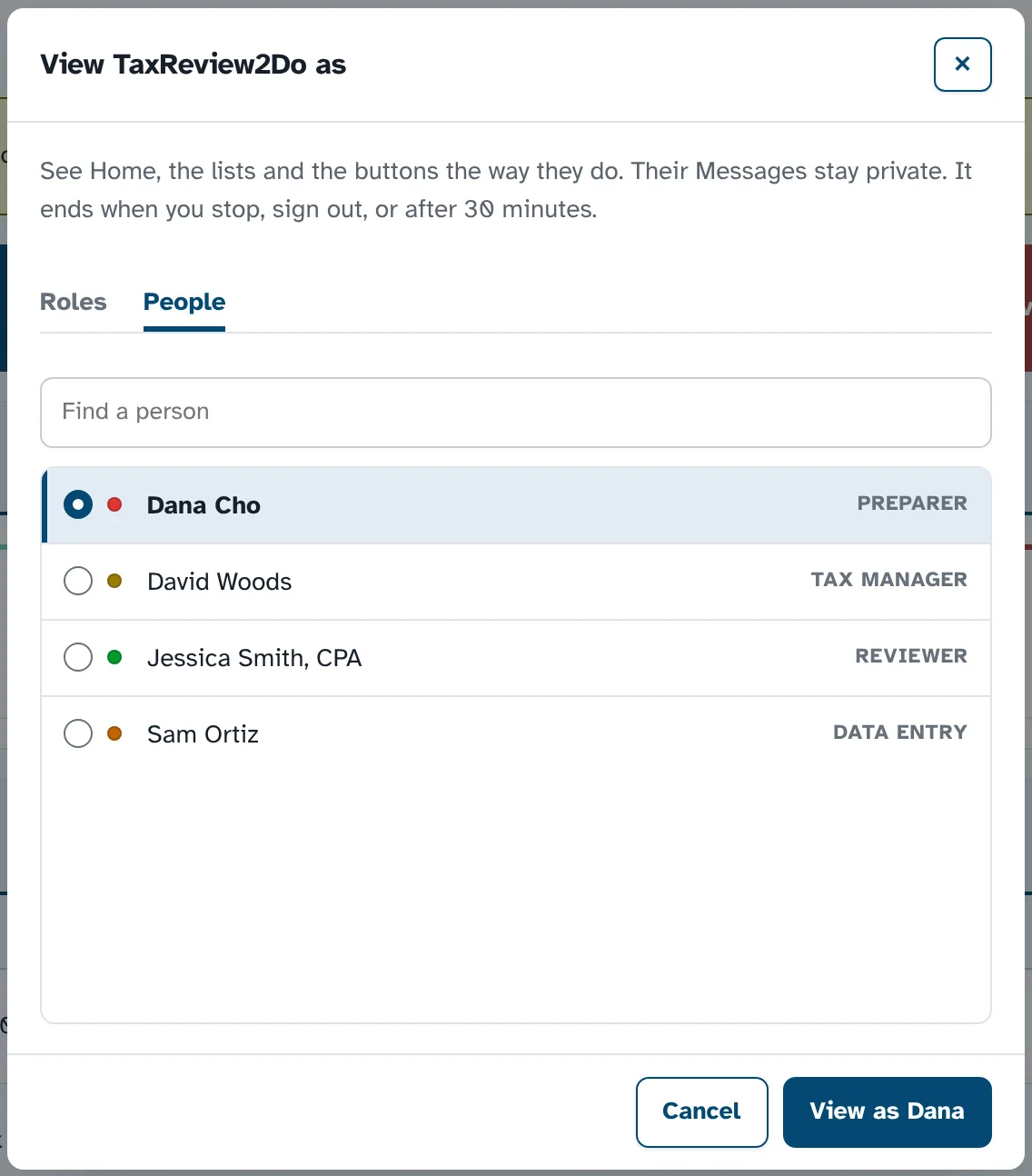
See TaxReview2Do the way a role or one person sees it, to check what they can do or help them find something.
- 1Click your name at the right of the navy row, then View as….
- 2Pick from Roles (what any preparer sees) or People (one person, such as Dana Cho).
- 3Click View as Dana (or View as preparer). A striped bar under the tabs says who you’re viewing as.
- 4Look around: Home, the lists and the buttons are theirs.
- 5Click Stop viewing → in the bar when you’re done.
Good to know
- You can still act, but every change asks first: Record as you, Stop viewing, or Cancel. Whatever you do is recorded as you, never as them.
- Settings are look-only while viewing, and their Messages, bell and Your turn stay private.
- Owners can view as admins and everyone below; admins as tax managers and below. Nobody views as an owner or themselves.
- It ends when you stop, sign out, close the tab, or after 30 minutes. Starting and stopping are recorded in the audit trail.
- Not available in the practice firm.
 23