
Roles and Plus
For everyone · 1 min read
Everyone has one role that decides what they can do; a Plus gives one person extra rights on top of it.
Everyone in the firm has one role. What each role can do is set once for the whole firm, in Permissions at the bottom of Settings › Team. When one person needs more than their role gives, they get a Plus: Dana Cho, a preparer who also signs off 1120-S returns, shows as Preparer Plus.
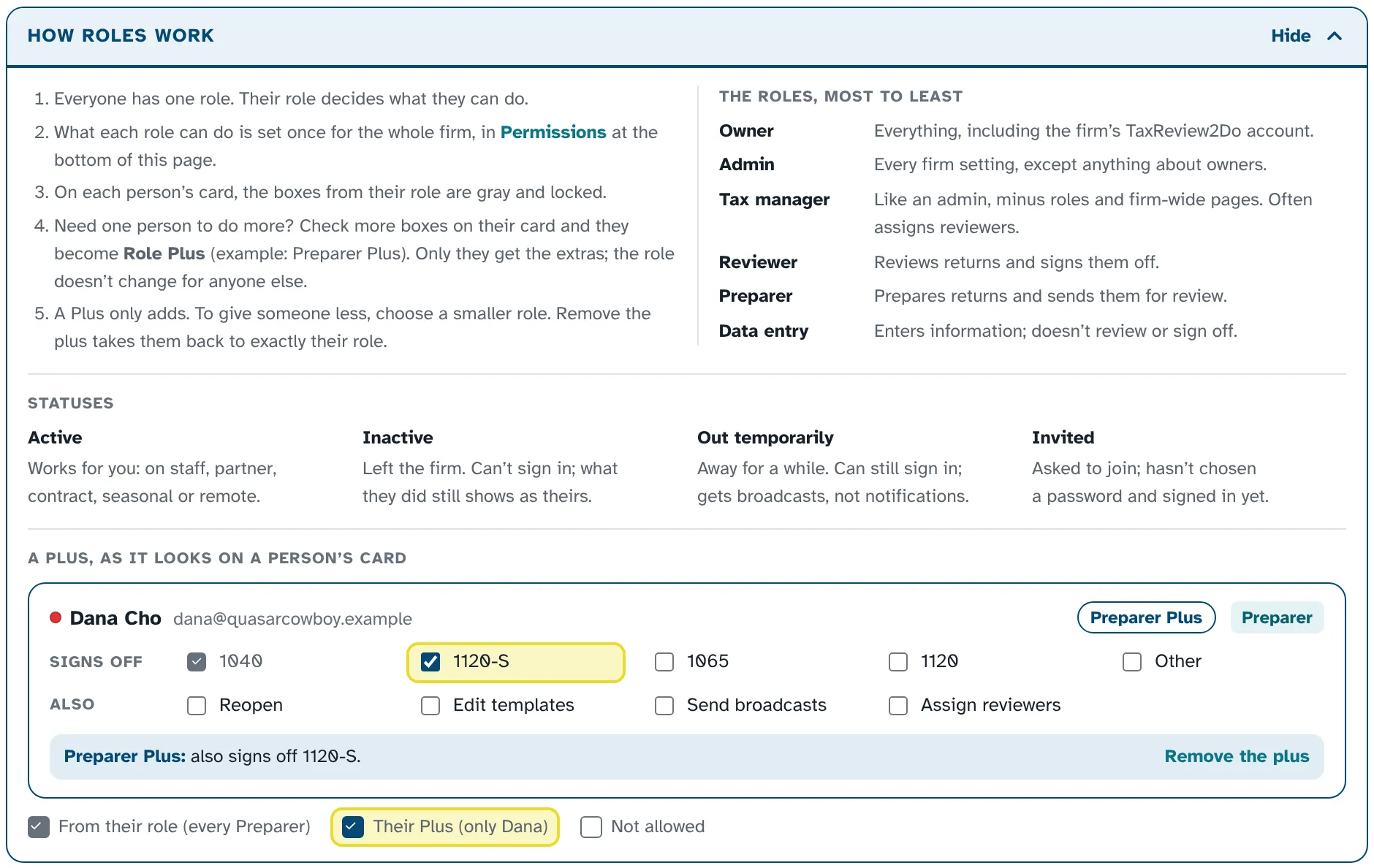
The seven roles, most to least
- Owner: everything, including the firm’s TaxReview2Do account (billing, and who can hand the account on).
- Admin: every firm setting, except anything about owners, deleting clients, the export and transferring ownership.
- Tax manager: like an admin, minus changing roles and status, and minus Firm profile, Deadlines and time, Security and compliance and Integrations. Adds people below them, gives them a Plus, assigns reviewers and runs Messages and broadcasts.
- Tax admin: keeps the calendar: moves dates, assigns preparers and reviewers, marks extensions and e-file, sends broadcasts. Never the preparer or the reviewer, and doesn’t sign off.
- Reviewer: reviews returns and signs them off.
- Preparer: prepares returns and sends them for review.
- Data entry: enters information; doesn’t review or sign off.
What Permissions decides for each role: which forms it signs off (1040, 1120-S, 1065, 1120, Other), and whether it can reopen signed-off reviews, edit templates, send broadcasts and assign reviewers.
Good to know
- On each person’s card, the boxes from their role are gray and locked; checked white boxes are their Plus.
- A Plus only adds. To give someone less, choose a smaller role. Remove the plus takes them back to exactly their role.
- Owners always have every right. Admins always edit templates, send broadcasts and assign reviewers; tax managers always assign reviewers.
- Everyone sees an at-a-glance page: Firm at a glance for owners, admins and tax managers, My work at a glance for everyone else.
- Your role, with Plus if you have one, shows under your name in the menu at the top right.