
Set your tax season and time tracking
For owners and admins · 1 min read
Set the dates your tax season runs, and choose whether and how the firm records review time.
- 1Open Settings › Deadlines and time.
- 2In Tax season, choose the month and day it Starts and Ends. The line under them shows this season’s dates.
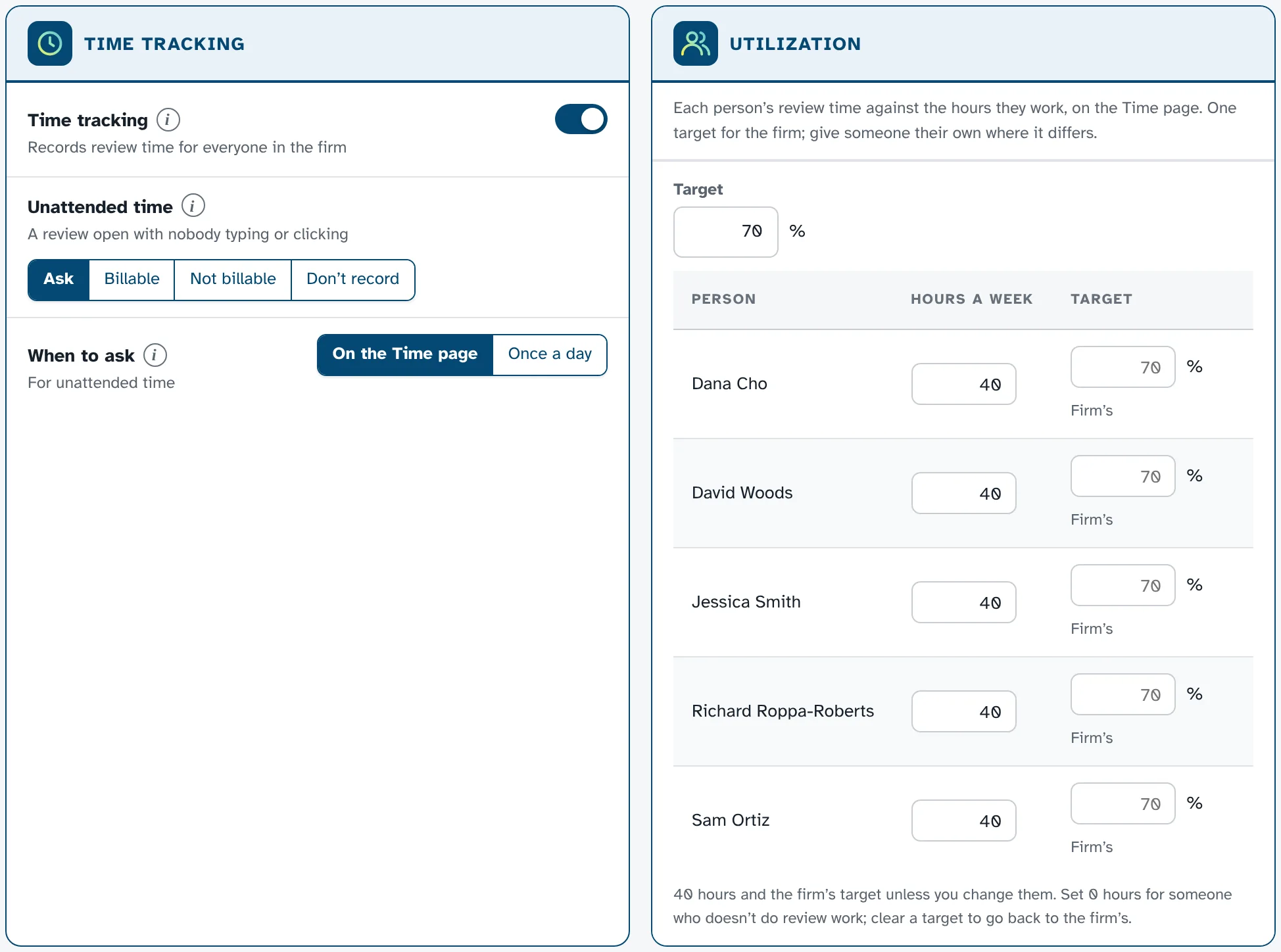
- 3Scroll to Time tracking and leave the switch on to record review time for everyone, or turn it off.
- 4Choose what happens to Unattended time (a review open with nobody typing or clicking): Ask, Billable, Not billable or Don’t record. With Ask, also choose When to ask: On the Time page or Once a day.
- 5In Utilization, set the firm’s Target, then each person’s hours a week and their own target if it differs.
Good to know
- The season starts as January 1 to October 15.
- Turning time tracking off asks first. Nothing is recorded for anyone, the Time tab goes away, and time already recorded is kept for when it’s back on.
- Utilization starts at a 70% target and 40 hours a week. Set 0 hours for someone who doesn’t do review work.
- Everything saves on its own, and each change is recorded in the audit trail.
 345