
Answer “You were away”
For everyone · 1 min read
When you come back to TaxReview2Do, say whether the time away was in the tax software, and for which review.
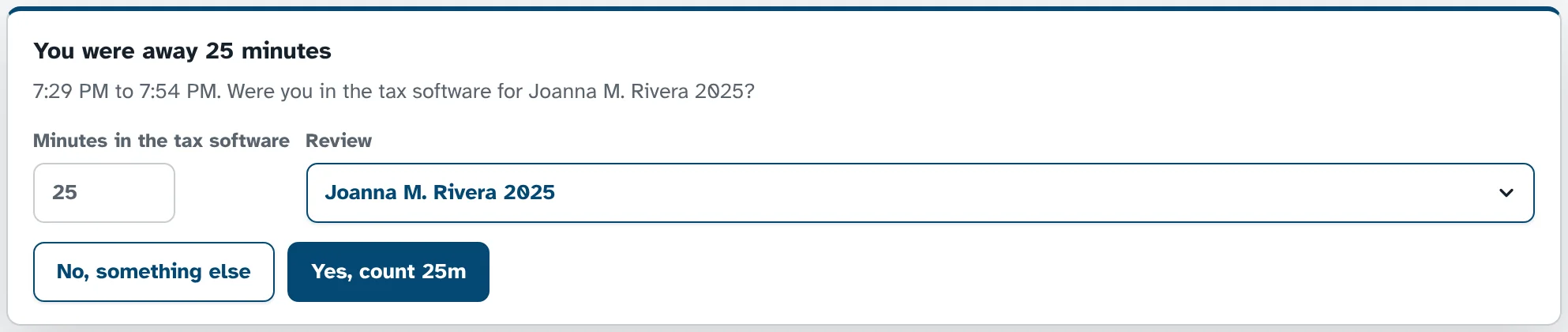
- 1Come back to TaxReview2Do after 7 minutes or more away. A card says You were away and for how long.
- 2Check Minutes in the tax software. It starts at the whole time away; lower it if part was a call or a coffee.
- 3Check Review. It starts on the review you last worked in; choose another if you were in a different return.
- 4Click Yes, count with the minutes. Or click No, something else, and nothing is recorded.
 234
Good to know
- TaxReview2Do can’t see your tax software, so it always asks. Nothing counts unless you say yes.
- Away more than 4 hours? The minutes start blank, so you type what you spent.
- Several times away waiting? The card says how many more there are to answer.
- Switching between two TaxReview2Do tabs isn’t being away.
- Counted the wrong review? Move it on the Time page.