
Utilization
For everyone · 1 min read
Compare each person’s review time with the hours they work, against your firm’s target.
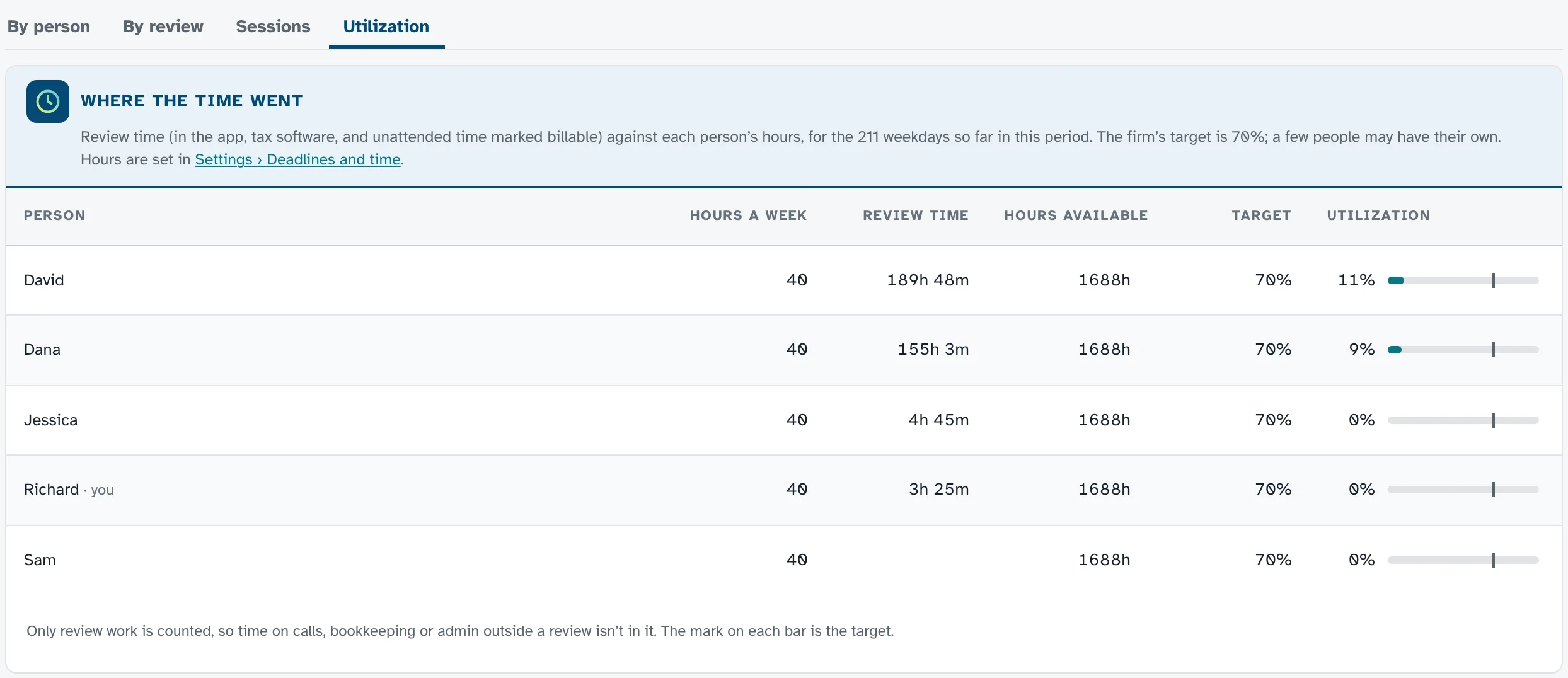
- 1Click Time in the tab row and pick This week, This month or This season.
- 2Under Where the time went, click Utilization.
- 3Read each row: Hours a week, Review time, Hours available, Target and Utilization. The mark on each bar is the target.
- 4To change the target or someone’s hours, go to Settings › Deadlines and time (owners and admins).
 23
Good to know
- Review time is time in the app, in tax software, and unattended time marked billable. Calls, bookkeeping and admin outside a review aren’t in it.
- Hours available count the weekdays so far in the period.
- One target for the firm (70% unless changed), and a person’s own where it differs, marked “own”.
- Hours start at 40 a week.
- Firm at a glance’s By person table shows each person’s utilization too.