
Invite someone
For owners, admins and tax managers · 1 min read
Add a person to the firm with a role; they get an email to join and show as Invited until they choose a password.
- 1Open Settings › Team.
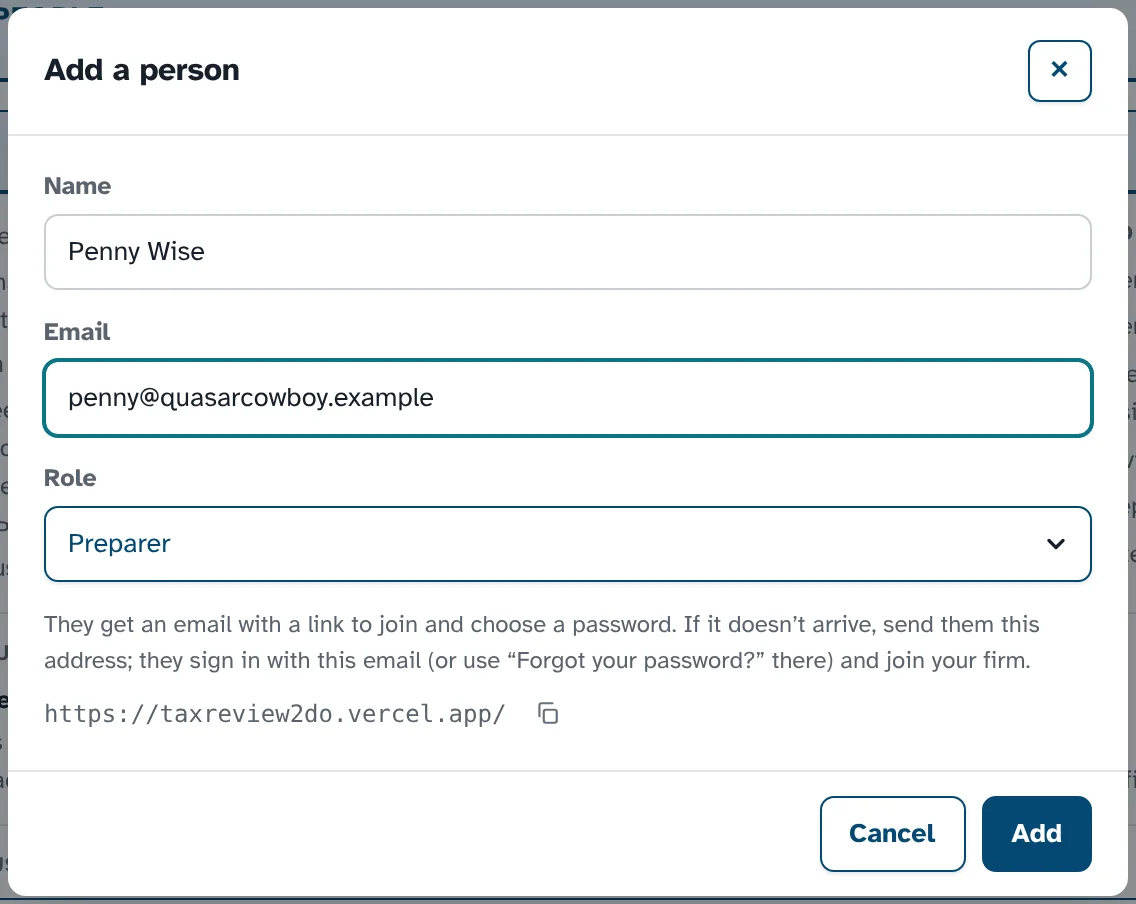
- 2Click ⊕ Add a person at the top right of People.
- 3Type their name and the email they’ll sign in with.
- 4Choose their Role. You can change it later.
- 5Click Add. They get an email with a link to join and choose a password, and their card shows Invited until they do.
> Changed your mind? Click Take back on their card. Their link then only says the invitation was taken back, and they turn Inactive. To invite them again, set their status back to Invited and click Send again.
Good to know
- Owners can add any role, including another owner. Admins add anyone but owners. Tax managers add reviewers, preparers and data entry.
- Read How roles work at the top of People before you pick a role. Roles and Plus explains each one.
- Adding someone is recorded in the audit trail with their role and email.
- An invited person can be made Inactive if they never join; nothing else changes.
 345