
Mark someone out temporarily or inactive
For owners and admins · 1 min read
Mark someone Out temporarily while they’re away, or Inactive when they leave, and hand their work to someone else.
- 1Open Settings › Team and find the person in People.
- 2In the status dropdown on their card, beside their role, choose Out temporarily or Inactive. Out temporarily saves right away; you’re done.
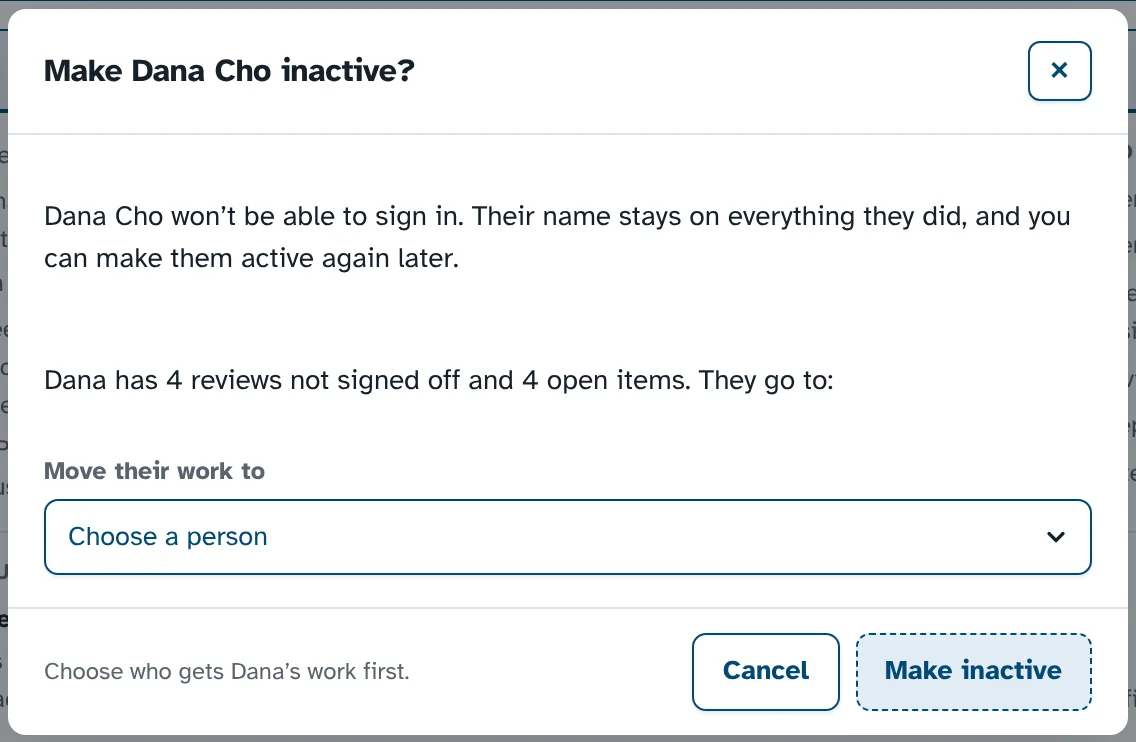
- 3For Inactive, choose who gets their work in Move their work to: their reviews not signed off and their open items.
- 4Click Make inactive.
 34
Good to know
- Out temporarily: can still sign in and still sees broadcasts, but gets no notifications (no bell badge, pop-ups or Slack) until they’re Active again.
- Inactive: can’t sign in. Everything they did still shows as theirs, and you can make them Active again later.
- Someone who hasn’t accepted their invitation can only be Invited or Inactive.
- If any of their work can’t move (someone may be editing a review), they stay Active and you see what moved.
- Only owners and admins change status, and only an owner changes another owner, after a warning.
- Every status change, and each review that moves, is recorded in the audit trail.