
Make a client inactive, or delete one
For everyone · 1 min read
Make a client inactive when they leave or close, keeping everything; delete one only if it was added by mistake.
- 1Open the client’s page from Clients.
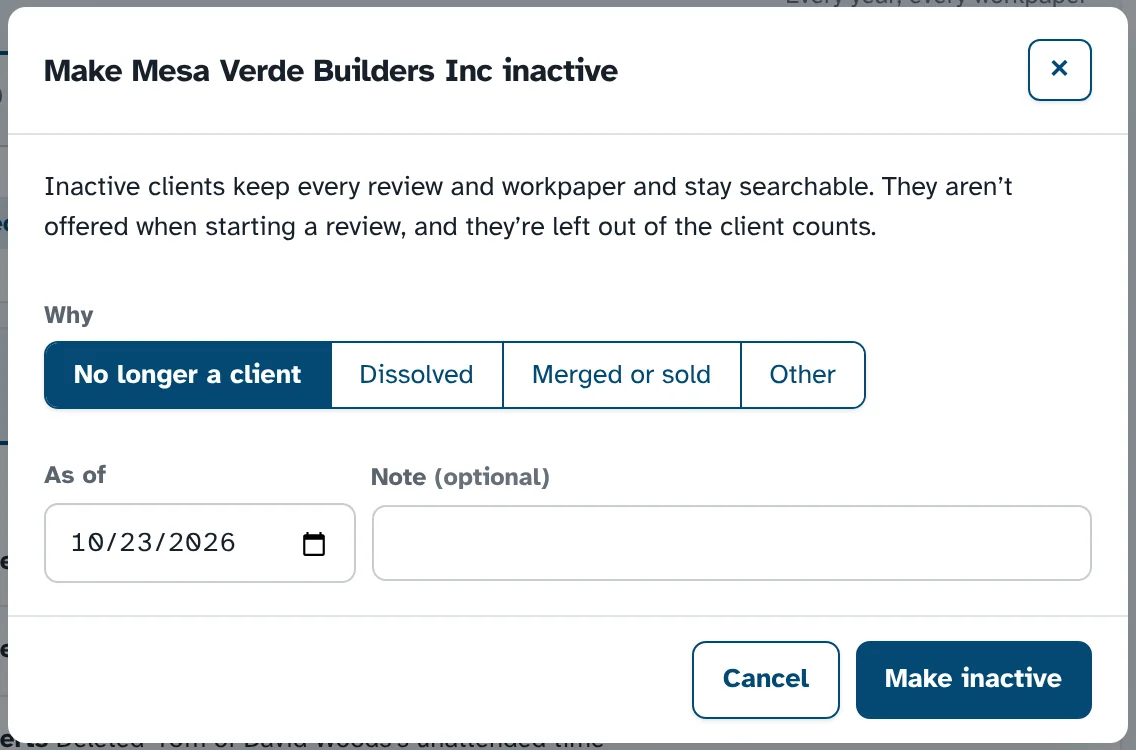
- 2Click Make inactive at the foot of the details panel.
- 3Choose Why: No longer a client, Dissolved, Merged or sold, Deceased or Other (the choices depend on whether it’s a person or a company).
- 4Set As of, the date it stopped, and add a note if you like (Other needs one).
- 5Click Make inactive.
 345
Good to know
- Inactive clients aren’t offered when starting a review and are left out of the client counts. Reviews not signed off can still be finished.
- Choosing Dissolved for a company sets its Secretary of State status to Dissolved.
- Delete client shows only to owners, and only on a client with no reviews. It asks for a reason, recorded in the firm’s audit trail.
- Deleting keeps any linked companies (no longer linked) and the client’s past audit entries. A TaxDome link goes too.